Add CAPTCHA protection to a promotion
Add, remove, position, and test CAPTCHA protection on a Revup form.
Add CAPTCHA
CAPTCHA helps reduce automated form submissions by asking the participant's browser to complete a verification check. In Revup, CAPTCHA is a form field and is managed separately from the Security Level presets.
- Open the promotion builder and select Form.
- In Form Fields, select Search for a field type.
- Select Captcha.
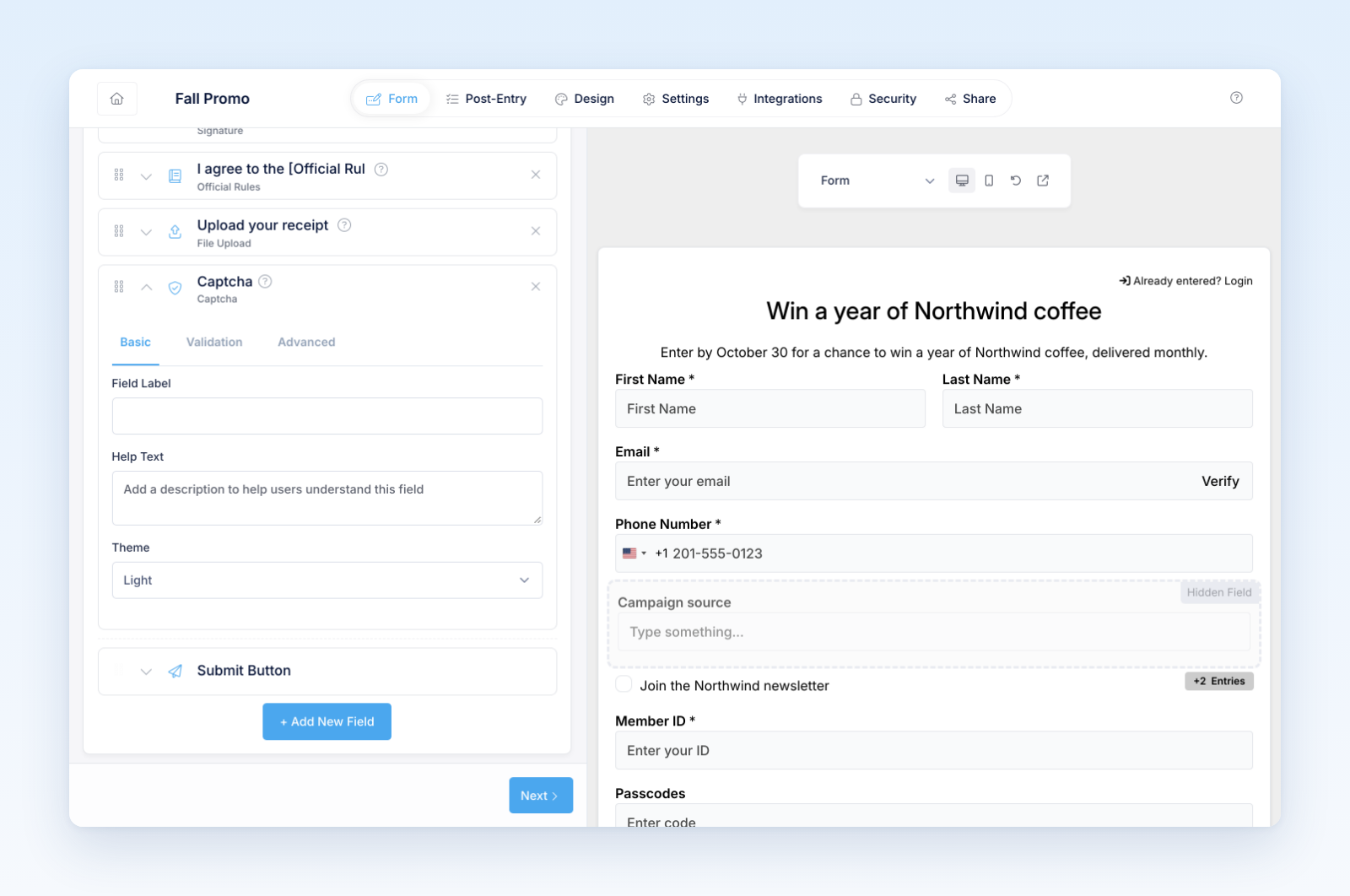
- Keep the field near the end of the form, before age, payment, or final eligibility controls when those are present.
- Preview and submit the form to confirm the check loads and completes.
New promotions normally include CAPTCHA by default. Only one CAPTCHA field can be added to a form.
Remove CAPTCHA
Open the CAPTCHA field's actions and remove it like another form field. The Security section will show CAPTCHA as unavailable in its preset summaries, but the selected Security Level and its IP-based protections remain unchanged.
Selecting Off under Security Level does not remove an existing CAPTCHA field. Remove the field separately if you intentionally do not want CAPTCHA protection.
Troubleshooting
If CAPTCHA does not load, test the public or preview URL in a normal browser window and check whether a privacy extension, network filter, or content blocker is preventing the verification service from loading. Localhost development environments may not behave like a published Revup domain.
Do not weaken live security settings only to complete a test. Use a preview or controlled test promotion, then verify the published experience before launch.
Was this helpful?
Still need help? Ask the team