Customize the form title and description
Set the heading and supporting description people see above your form fields.
Explain the form before people enter
The Content section controls the heading and supporting text shown above your form fields.
Update your form content
- Open your promotion in the builder.
- Select Form.
- In Content, enter the Form Title.
- Add supporting text in Form Description.
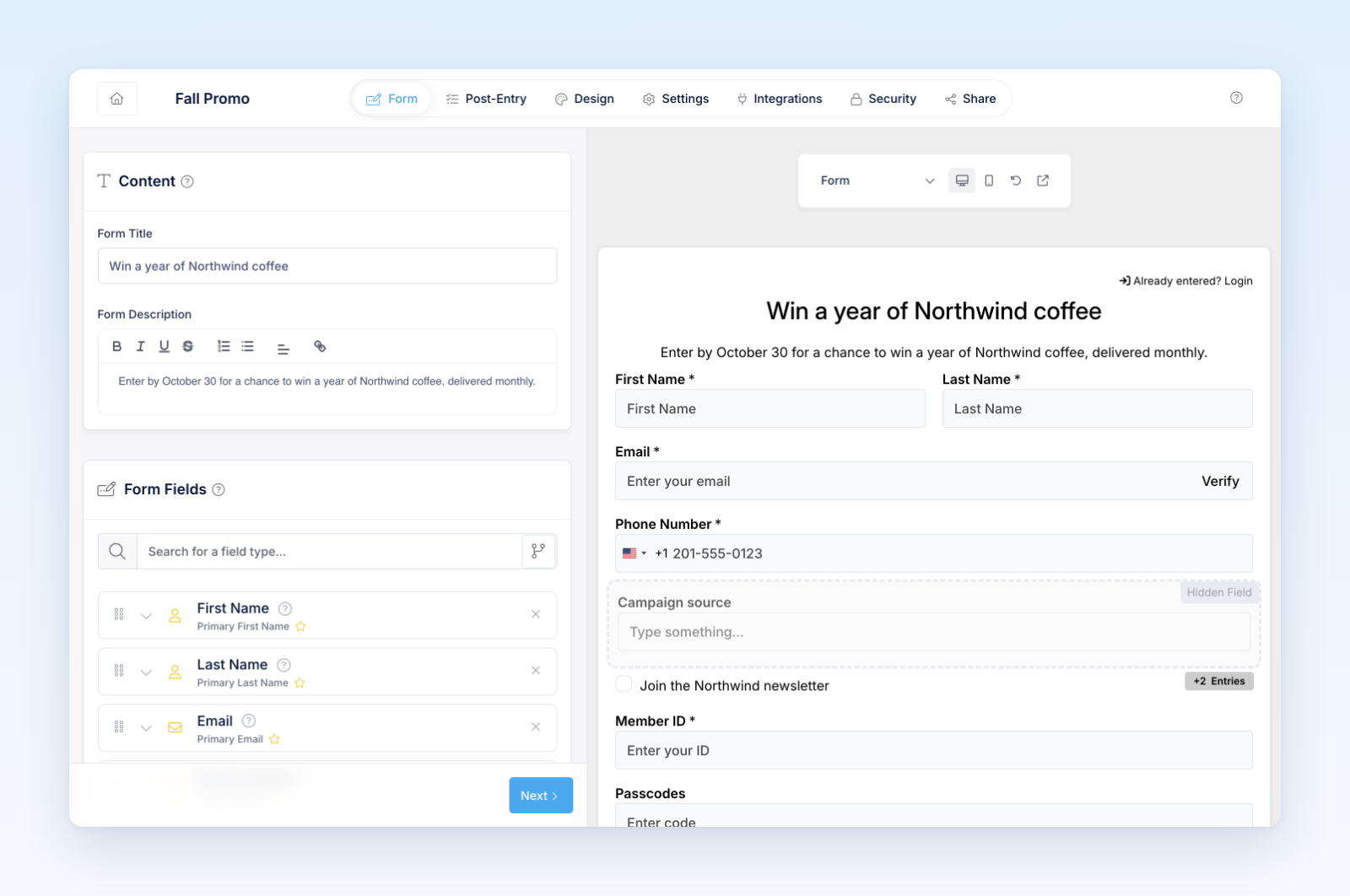
- Review both fields in the preview.
Your changes save automatically and appear in the preview as you edit.
What each field controls
- Form Title is the main heading at the top of the form.
- Form Description appears below the title and above the form fields. Use it to briefly explain the purpose of the form or what someone should expect when completing it.
You can use the Form Description editor to format text and add links when needed.
Writing tips
- Make the Form Title specific enough that someone immediately understands what the promotion offers. Win concert tickets is vague. Win 2 tickets to see Miley Cyrus live at MetLife Stadium tells people exactly what they can win.
- Lead with the most recognizable details, such as the prize, event, artist, product, or destination.
- Keep the title concise, but do not remove details that make the offer clear and compelling.
- Use the Form Description to add helpful context without repeating the title. For example: Enter for your chance to win two tickets to the show. Complete the form below to enter.
- Break longer descriptions into short paragraphs so they are easy to scan.
- Use plain language and tell people what they should do next.
- Check the preview to make sure the title and description fit comfortably on both desktop and mobile layouts.
Social sharing
By default, Revup also uses the Form Title and Form Description for the promotion's social-sharing preview.
To use different social-sharing text, open Share → Social preview. Turn off Use form title or Use form description, then enter the title or description you want people to see when the promotion is shared.
Was this helpful?
Still need help? Ask the team