Connect HighLevel
Connect a HighLevel sub-account to a Revup promotion, add tags, map fields, and confirm participants arrive as contacts.
Before you start
- Sign in to HighLevel as a user who can install apps in the sub-account that should receive participants. You can also sign in at the agency level and choose the sub-account during setup.
- Allow pop-ups for Revup in your browser. HighLevel authorization opens in a pop-up window.
- Your form needs a visible Email or Phone Number field. HighLevel matches contacts by email address or phone number.
- Purchase Sweepstakes promotions do not have an Integrations tab, so you cannot connect HighLevel to them.
- Each Revup account can connect up to 10 HighLevel sub-accounts.
Connect HighLevel to a Revup promotion
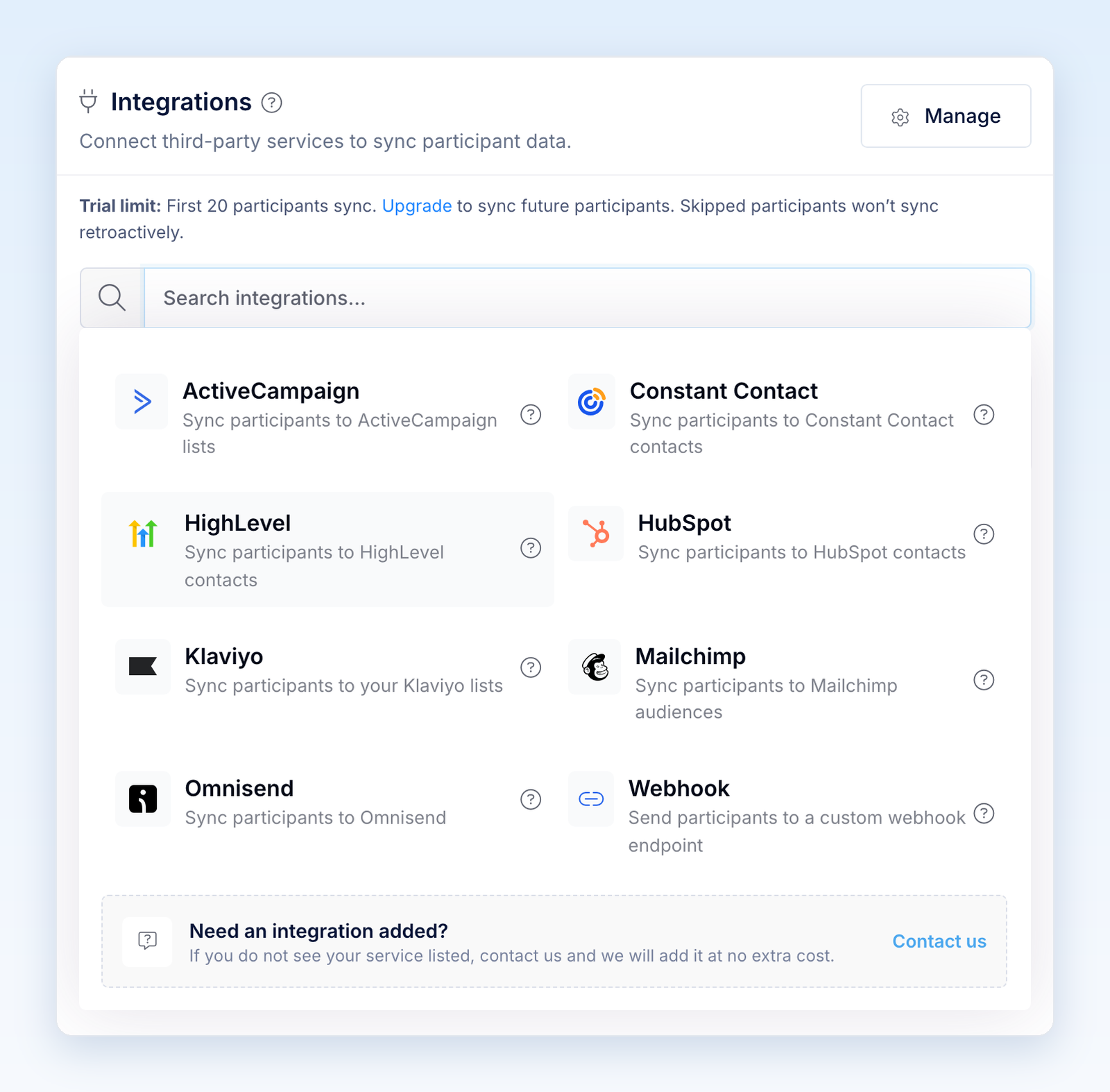
- Open the promotion builder, go to Integrations, and select + Add Integration.
- Choose HighLevel. If your account already has the sub-account connected, use + Add next to it under Your Connected Accounts instead.
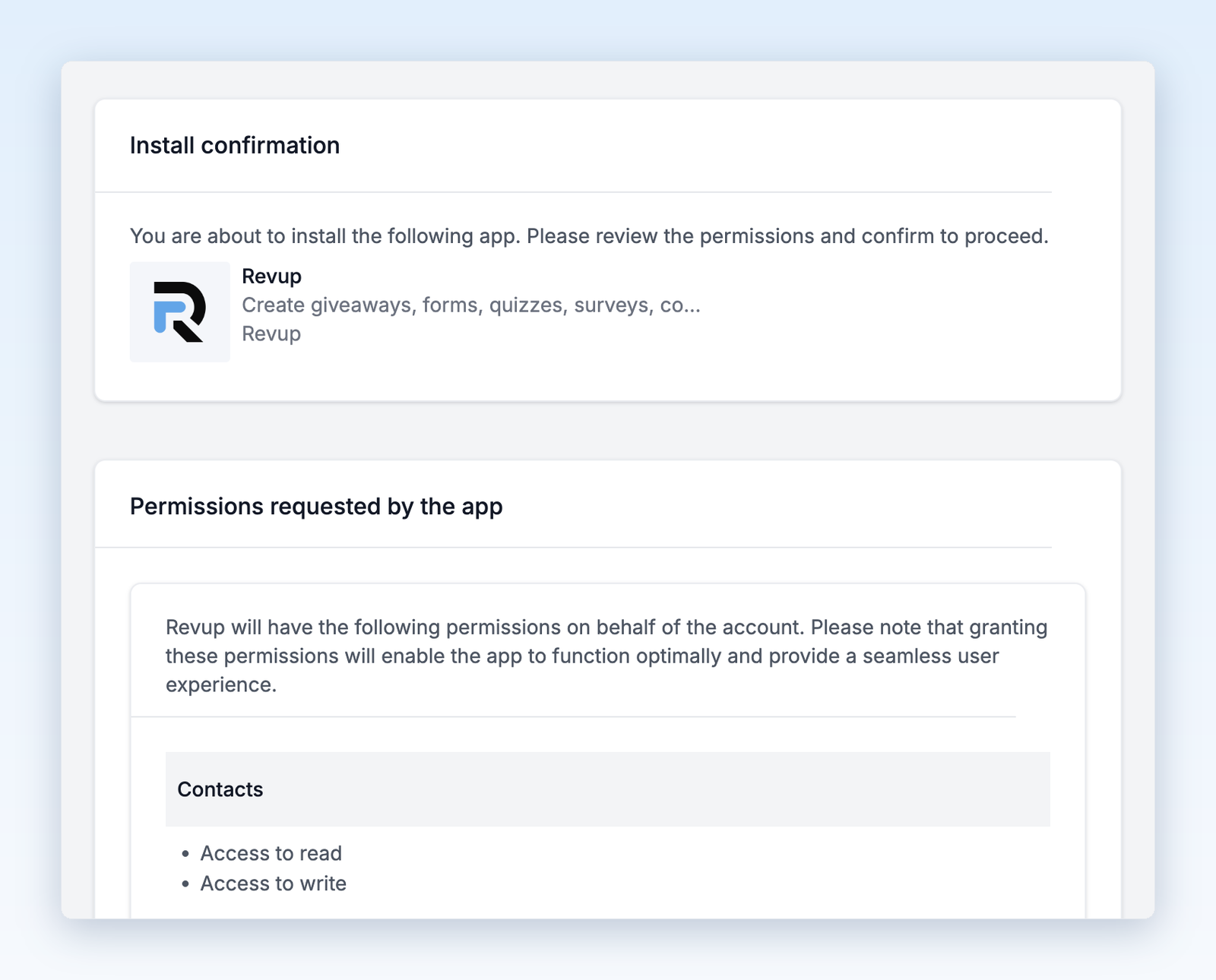
- In the HighLevel window, sign in if needed, choose the sub-account you want to connect, and approve Revup's requested access. You do not need to copy an API key.
- If you authorized at the agency level and the app is installed in more than one sub-account, Revup shows Choose a sub-account. Select the sub-account under HighLevel sub-account, then select Connect sub-account. With only one sub-account, Revup connects it automatically.
- In Configure HighLevel, review HighLevel Tags. Every synced contact gets these tags; the default is
revup. Type a tag and press Enter, or select +Add, to add another. - Under Form Field Mapping, choose a HighLevel contact field for each form field you want to send. Fields with a lock icon are mapped automatically. Choose Do not sync this field for anything you do not want to send, or + Create custom field to create a text field in HighLevel.
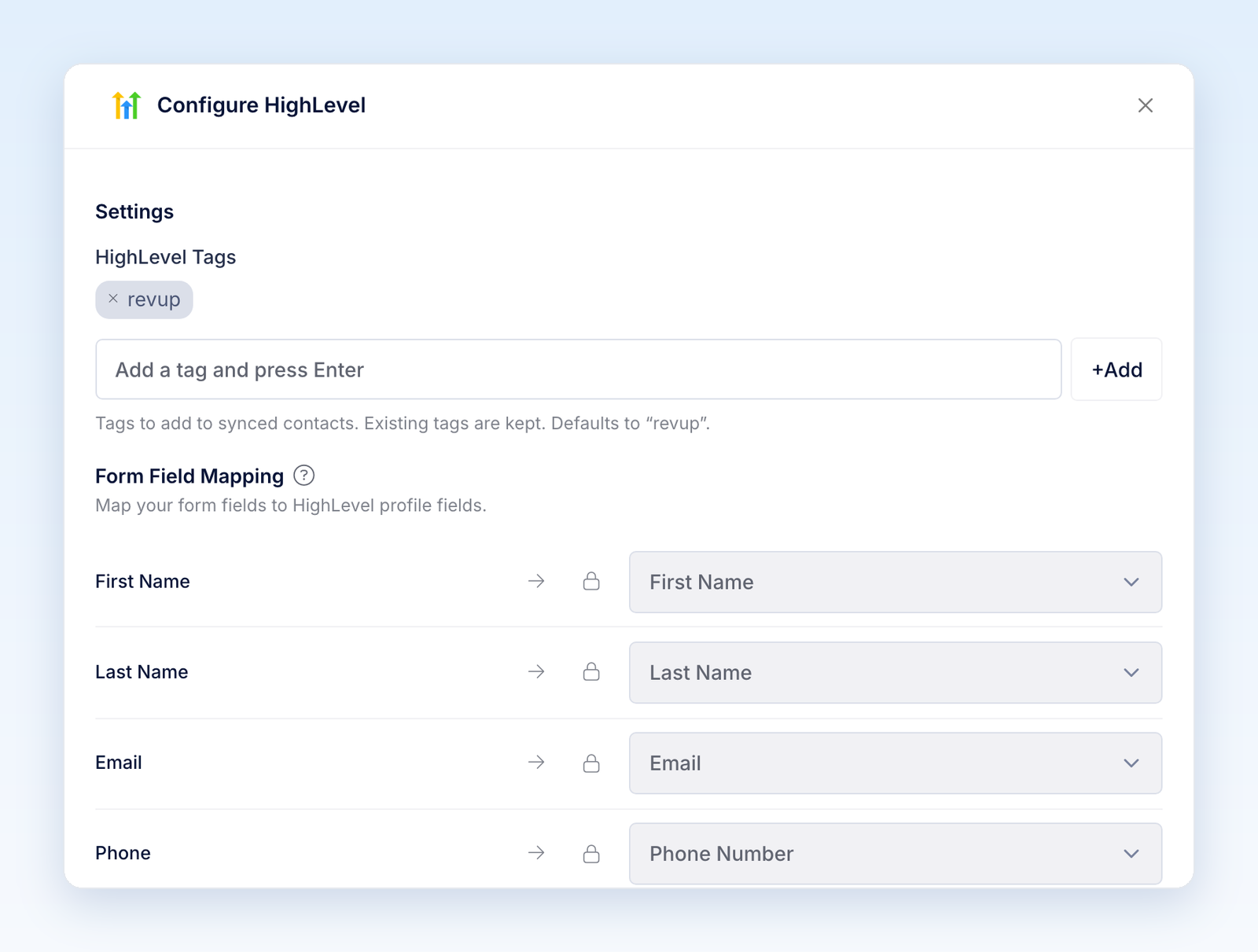
Company Name is not mapped automatically. To send a company name, choose Company Name on the form field that collects it.
- Select Save. The HighLevel card shows Active with the connected sub-account.
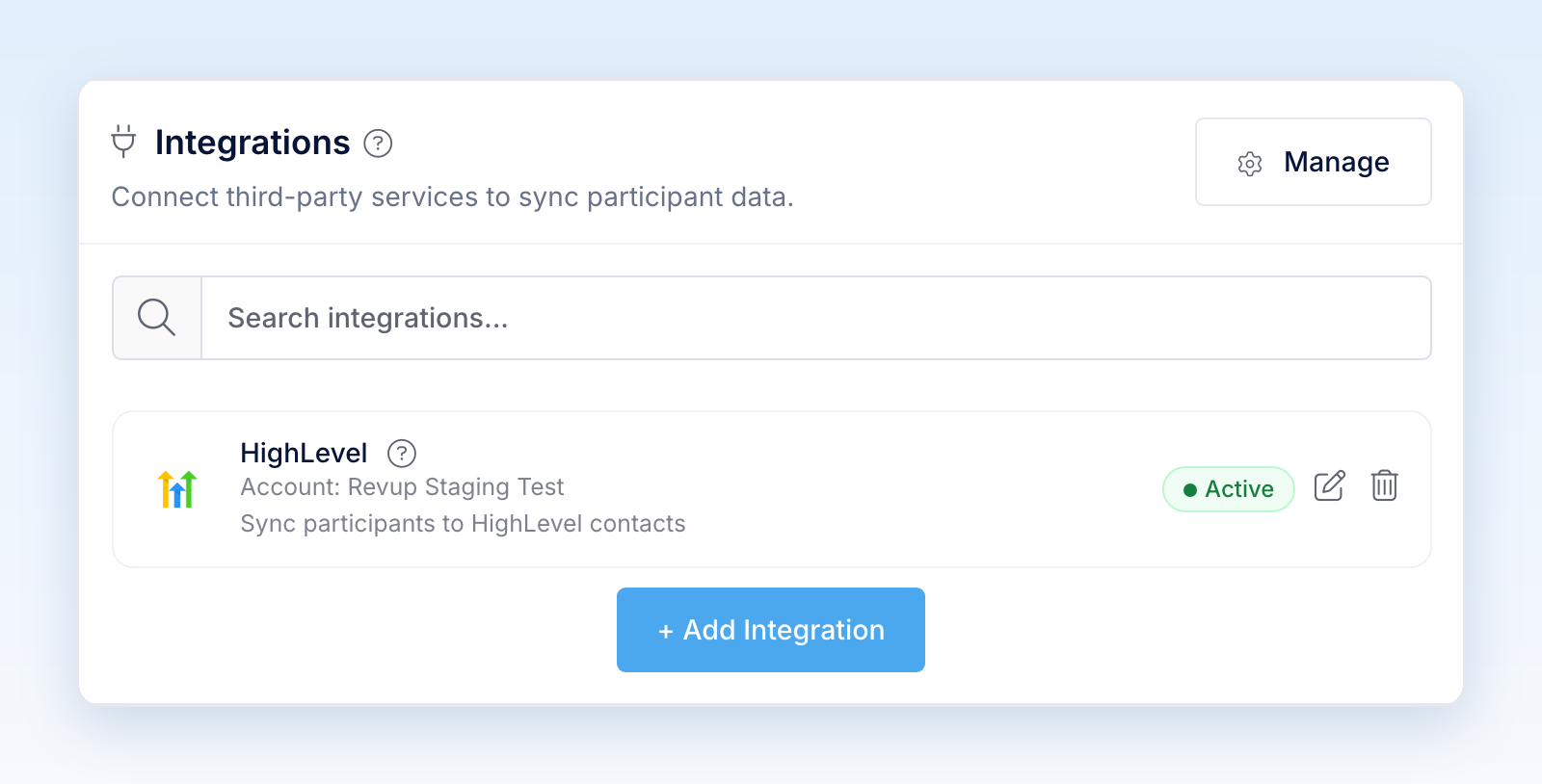
- After the promotion starts, enter once through its public link with your own email address. In HighLevel, open Contacts in the connected sub-account, search for that email, and confirm the mapped fields and tags.
Entries submitted from the builder preview are test entries. Revup never sends test entries to HighLevel or any other integration, so use a real entry to check delivery. Active confirms that the integration is configured; the public-entry check confirms that data reaches HighLevel.
Use HighLevel in your next promotion
HighLevel stays connected to your Revup account, so you can reuse a sub-account without authorizing it again for every promotion.
- In the next promotion's builder, go to Integrations and select + Add Integration.
- Under Your Connected Accounts, select + Add next to the HighLevel sub-account you want to use.
- In Configure HighLevel, choose the tags and field mapping for this promotion, then select Save.
Each promotion keeps its own tags and field mapping. To review connected accounts, select Manage in the Integrations panel or go to Account → Integrations.
What Revup sends to HighLevel
For each eligible entry, Revup creates or updates a contact in the connected sub-account and adds your tags. Revup sends contacts only; it does not create businesses, opportunities, or other HighLevel records.
- Standard fields include Email, Phone Number, First Name, Last Name, Street Address, City, State, Postal Code, Country, Date of Birth, Website, and Company Name.
- Other answers can be mapped to HighLevel contact custom fields of these types: text, large text, number, monetary, date, single choice, and multiple choice. Fields you create from Revup are text fields.
- Only mapped fields with a value are sent. A blank answer does not clear a value already in HighLevel.
- If an answer does not fit its HighLevel field, such as text in a number field or an unrecognized country, Revup leaves that value out and sends the rest. The participant's delivery shows Partially synced with the fields that were not sent.
If the contact already exists in the sub-account, Revup updates it instead of creating a duplicate. HighLevel matches by email address or phone number, following the sub-account's duplicate contact settings. Revup adds tags without removing existing ones, and does not change fields it does not send.
When you save, Revup creates any missing system fields in the sub-account as text custom fields. In HighLevel, their names start with Revup, for example Revup Promotion ID. These fields are locked in System Fields and are sent when they have a value.
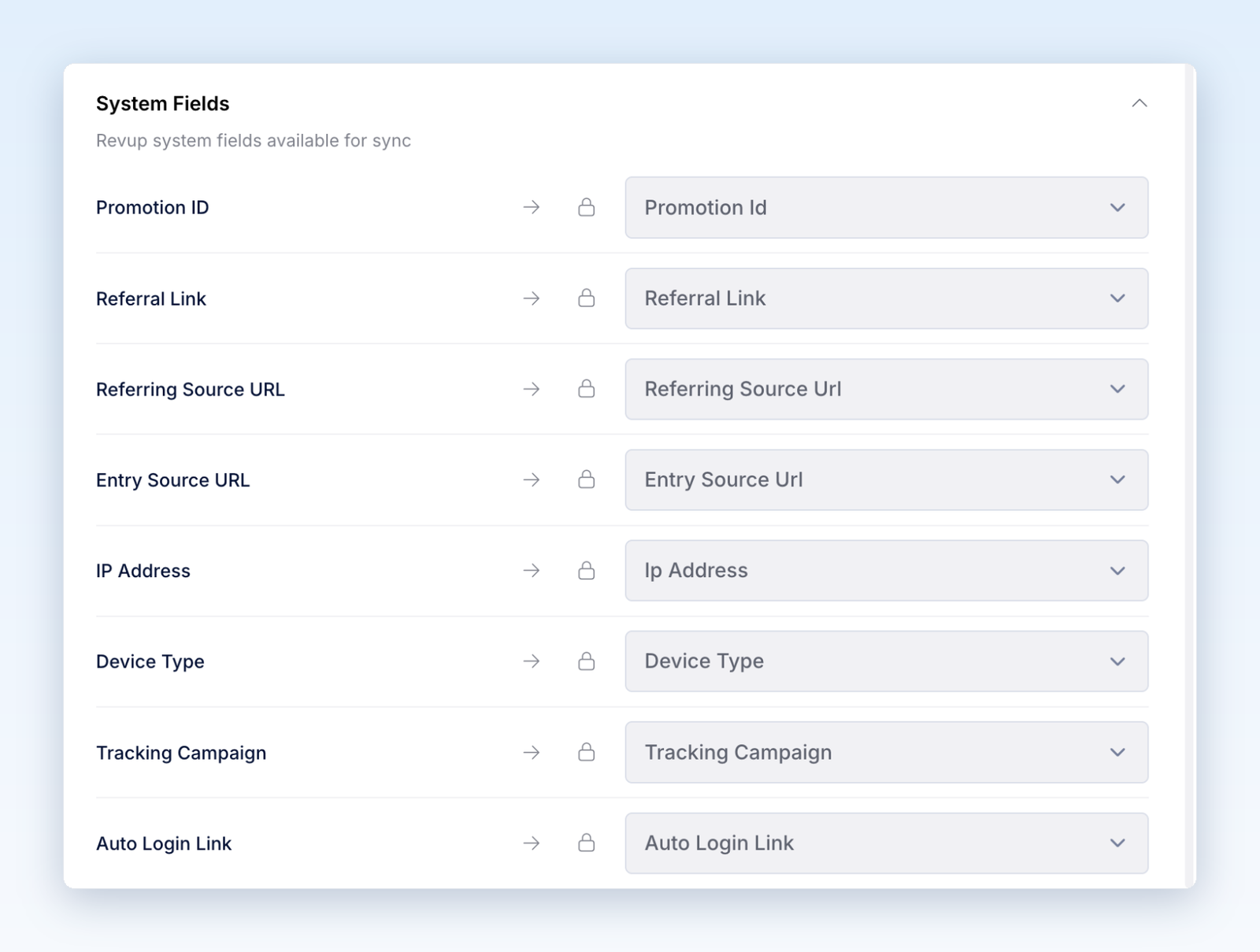
On quiz promotions, System Fields also lists Quiz Result and Quiz Score. They are not sent until you map each one to a HighLevel field.
These fields hold the most recently synced values, rather than a history of every promotion entered. Payment Amount is updated after the payment completes, and only for participants whose email address is synced.
Email and SMS consent
Connecting HighLevel does not create consent. If your form has an Email Consent field and the participant leaves it unchecked, Revup leaves their email address out of the sync. If your form has an SMS Consent field and the participant leaves it unchecked, Revup leaves their phone number out. Revup still sends the contact when an email address or phone number remains; otherwise the participant is not sent.
Revup does not subscribe contacts, change their do-not-disturb settings, or override an opt-out already recorded in HighLevel. Review each contact's communication settings in HighLevel before sending campaigns.
Group contacts with tags
Use a different tag for each promotion if you want to keep its audience together, for example summer-giveaway. Tags are added, never replaced, so a participant who enters several promotions keeps every tag. HighLevel creates a tag that does not exist yet and stores it in lowercase. You can then filter contacts or start a HighLevel workflow by tag.
Use referral and return links in HighLevel
The Revup Referral Link and Revup Auto Login Link custom fields are stored on each contact, so you can add them to HighLevel emails and messages as contact fields.
- Referral Link: lets participants share the promotion. When you enable a Share with friends bonus action, eligible friends who enter through that link count toward referral bonus entries.
- Auto Login Link: brings a participant back to their own entry for daily entries or bonus actions. This link is private. Send it only to that participant; never put it in a public post or shared page.
Both fields can change when a later promotion syncs the same contact. Send a test message to your own test contact before using them in a campaign.
Disconnect HighLevel
- Stop syncing one promotion: In that promotion's Integrations panel, select the trash icon on the HighLevel card, then Yes, remove. The sub-account stays connected to your Revup account for other promotions.
- Disconnect the account everywhere: Go to Account → Integrations. Under Connected Integrations, open the HighLevel row's actions menu and select Disconnect. If promotions use it, confirm with Yes, disconnect from all; Revup removes the connection from those promotions.
Disconnecting stops future syncs. It does not remove contacts, field values, or tags already sent to HighLevel, and it does not uninstall the Revup app from HighLevel.
If someone uninstalls the Revup app in HighLevel, Revup stops syncing to that sub-account and sends a HighLevel sync failed alert by email and in the dashboard. On Account → Integrations, the connection shows Error. To reconnect, add HighLevel from a promotion's Integrations tab and choose the same sub-account. Revup restores the existing connection, and your promotions resume syncing new entries. Entries submitted while the app was uninstalled are not sent.
Troubleshooting
If authorization does not open, allow pop-ups for Revup and try connecting again.
If a participant or field is missing, check these in order:
- Test entry: Builder-preview entries are never sent. Test through the public promotion link after it starts.
- Wrong sub-account: Check the sub-account shown on the HighLevel card. To use a different one, remove the card with the trash icon, then add HighLevel again and choose the intended sub-account.
- Existing contact: Search HighLevel by email address and phone number. Revup may have updated an existing contact instead of creating a new one.
- Consent: An unchecked Email Consent or SMS Consent field leaves that email address or phone number out. If neither remains, the participant is not sent.
- Mapping not saved: If Save shows an error, a mapped HighLevel field no longer exists in this sub-account, has a type Revup cannot fill, or is used by two form fields. Choose a different field and save again.
- Partially synced: The delivery lists the fields HighLevel could not accept. Correct the answer format or choose a matching field type.
- Connection error: If Account → Integrations shows Error, reconnect as described above.
- Trial limit: During a trial, integrations sync only the first 20 participants across your Revup account. Upgrading enables future syncs; skipped participants are not synced retroactively.
- Failed delivery: Revup retries temporary HighLevel errors automatically. After correcting the cause, open the participant in Revup, go to Activity, and select the retry icon (Retry HighLevel) beside the failed delivery.
Was this helpful?
Still need help? Ask the team