Choose a promotion security level
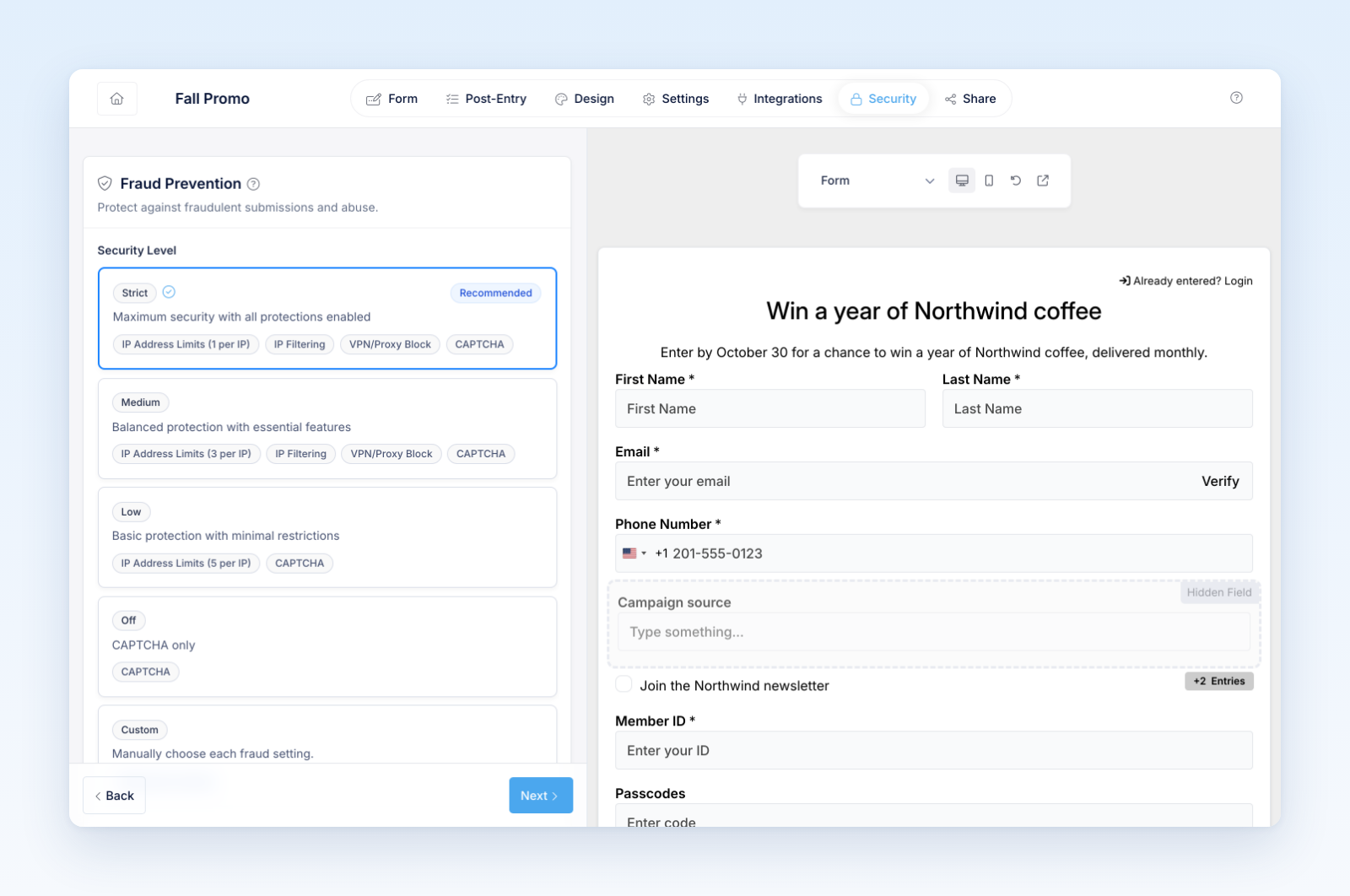
Compare Revup's Strict, Medium, Low, Off, and Custom security settings to choose a fraud-prevention preset that fits your promotion.
Start with a security preset
Security levels provide a quick starting point for repeat-entry and network protections. Open the promotion builder and select Security → Security Level.
What each level does
CAPTCHA is separate from these presets. If the form contains a CAPTCHA field, it can remain active even when the Security Level is Off.
Choose a level
- Open the promotion and select Security.
- Review how many legitimate participants may share an internet connection.
- Select Strict, Medium, Low, Off, or Custom.
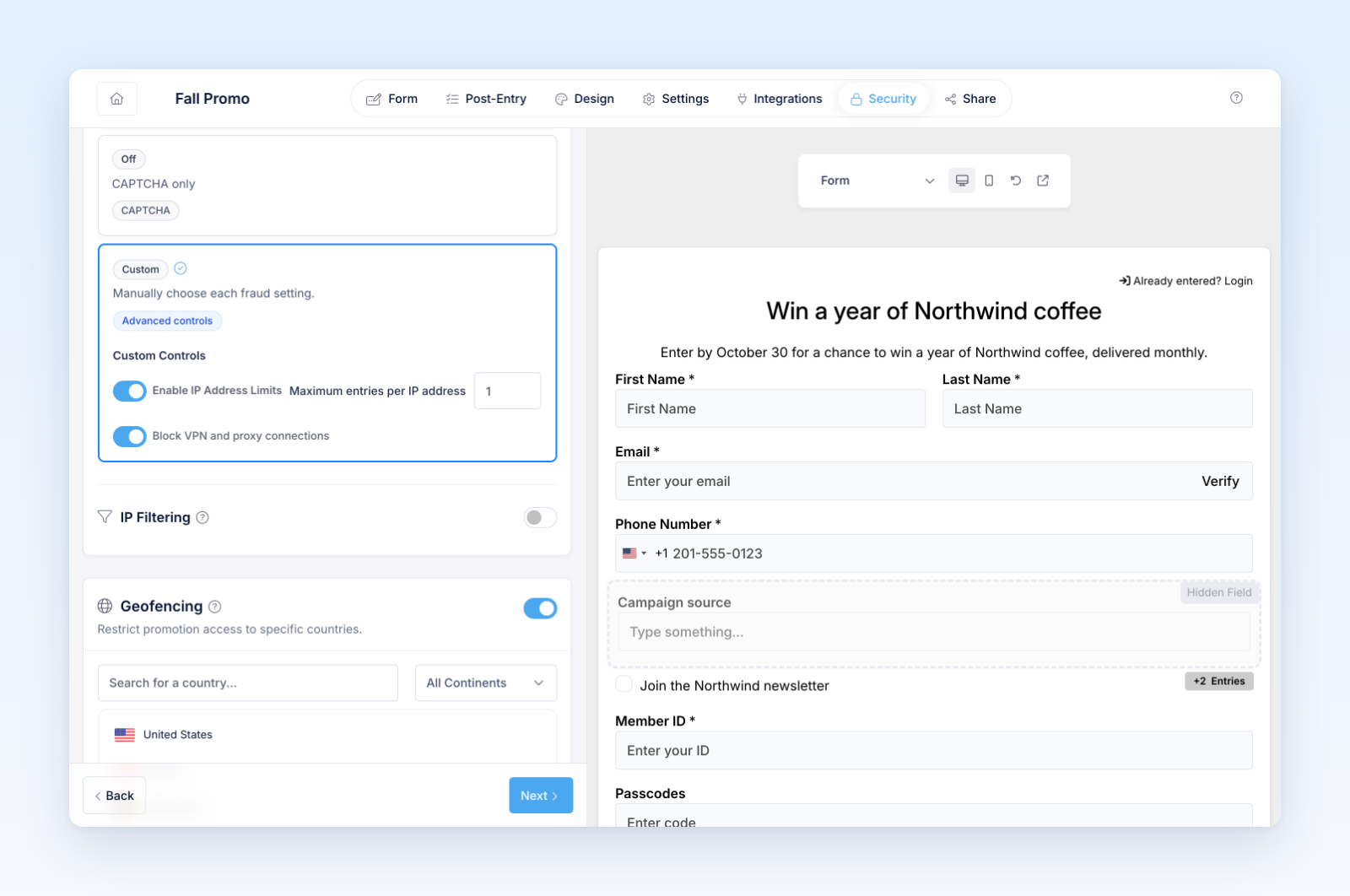
- If you select Custom, choose whether to enable IP address limits, set the maximum entries per IP address, and block VPN or proxy connections.
- Submit test entries from an allowed scenario before launch.
Your selection saves automatically. Changing a preset replaces the IP-limit and VPN/proxy settings with that preset's values.
Important considerations
An IP address can represent an entire home, office, school, store, event venue, or mobile network. A one-entry IP limit can therefore block different people who legitimately share a connection. VPN and proxy blocking can also affect privacy-conscious participants and some corporate networks.
Choose the least restrictive level that still matches your official rules and risk level. Review invalid entries before drawing or confirming winners.
New promotions start with Strict security. Review that default before running a shared-network event or inviting several people in one household.
Was this helpful?
Still need help? Ask the team