Connect ActiveCampaign
Connect ActiveCampaign to a Revup promotion with your API URL and key, choose a list and tags, map fields, and confirm contacts reach ActiveCampaign.
Before you start
- Sign in to the ActiveCampaign account that should receive participants, and make sure it has the list you want to use.
- In ActiveCampaign, go to Settings → Developer and copy your API URL and API Key. Treat the API key like a password.
- Your form needs a visible Email field. ActiveCampaign matches contacts by email address.
- Purchase Sweepstakes promotions do not have an Integrations tab, so you cannot connect ActiveCampaign to them.
Connect ActiveCampaign to a Revup promotion
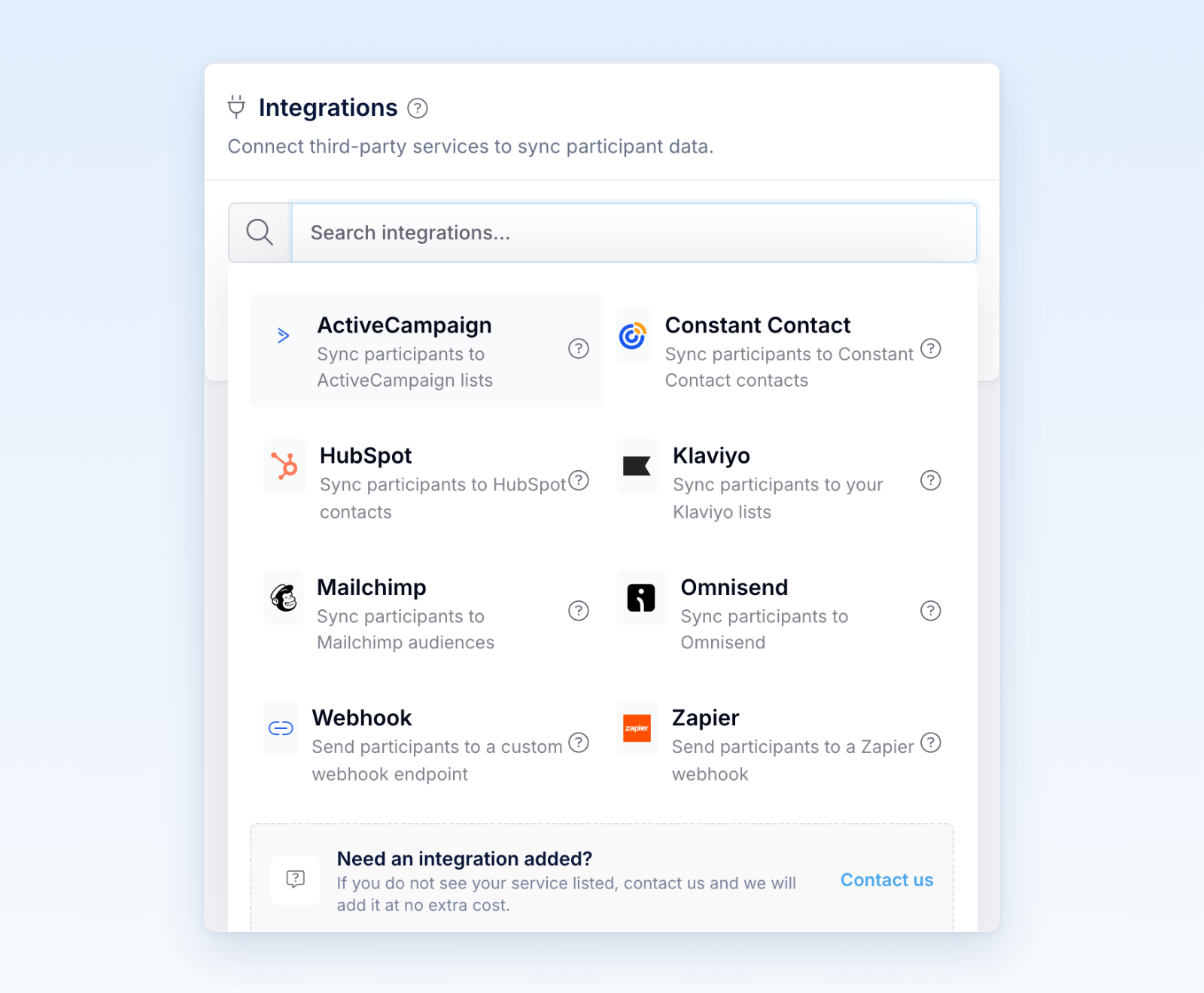
- Open the promotion builder, go to Integrations, and select + Add Integration.
- Choose ActiveCampaign. If your Revup account already has ActiveCampaign connected, follow Use ActiveCampaign in your next promotion below instead.
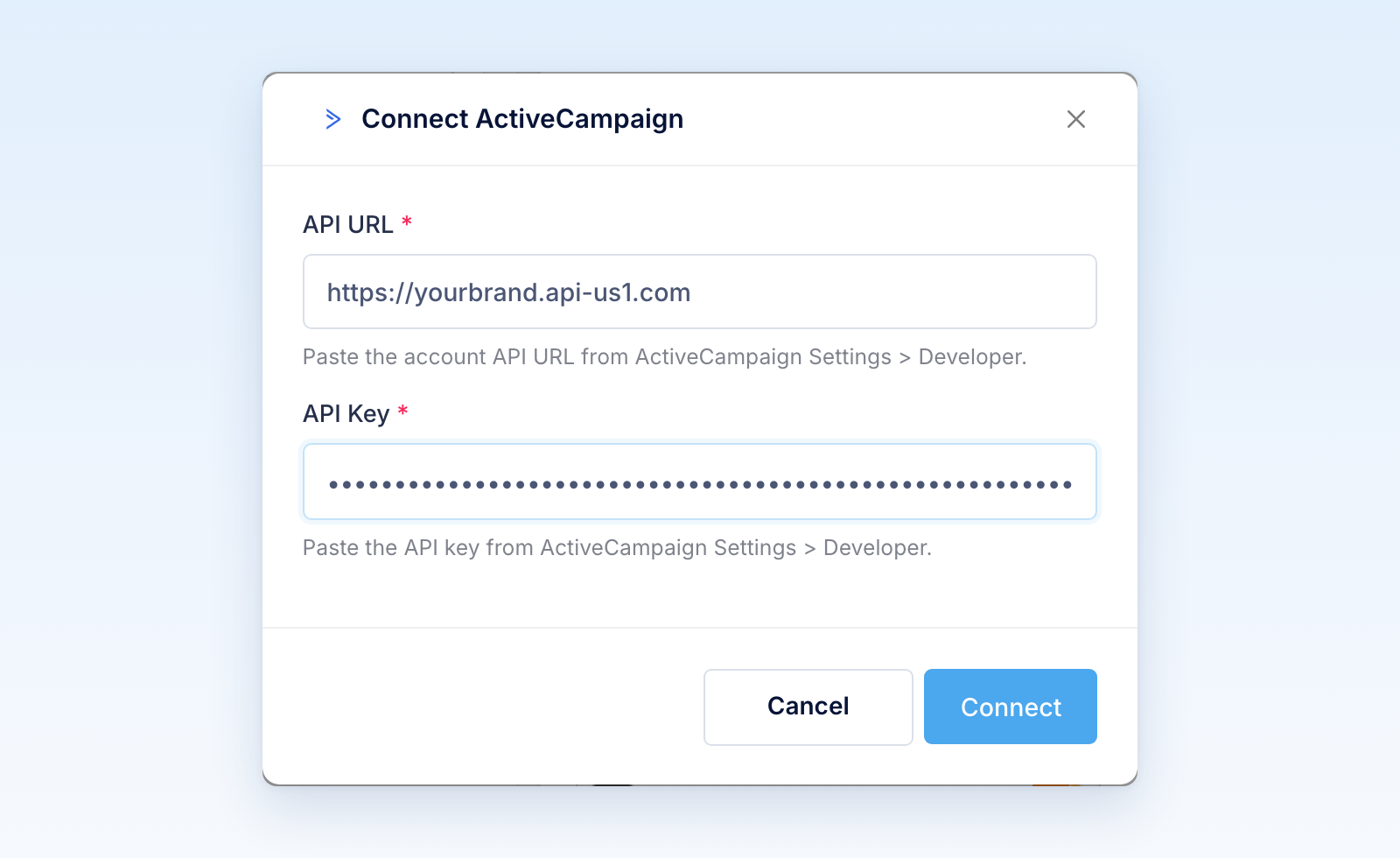
- In Connect ActiveCampaign, paste your API URL and API Key, then select Connect.
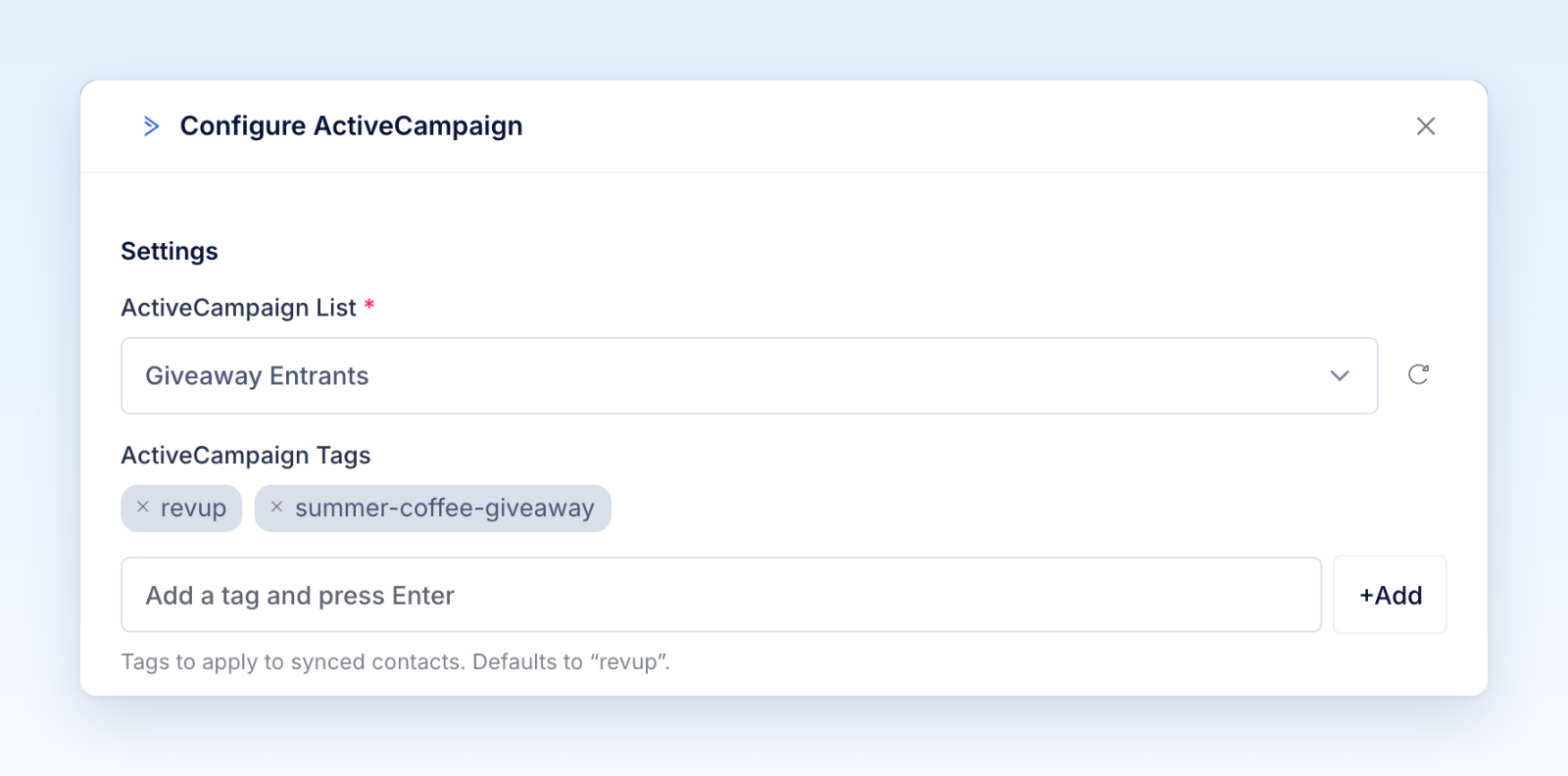
- In Configure ActiveCampaign, choose the ActiveCampaign List that participants should join. If a new list is missing, select the refresh icon next to the list.
- Under ActiveCampaign Tags, keep the default
revuptag, add your own tags, or remove the ones you don't want. Type a tag and press Enter, or select +Add. Every participant from this promotion gets these tags.
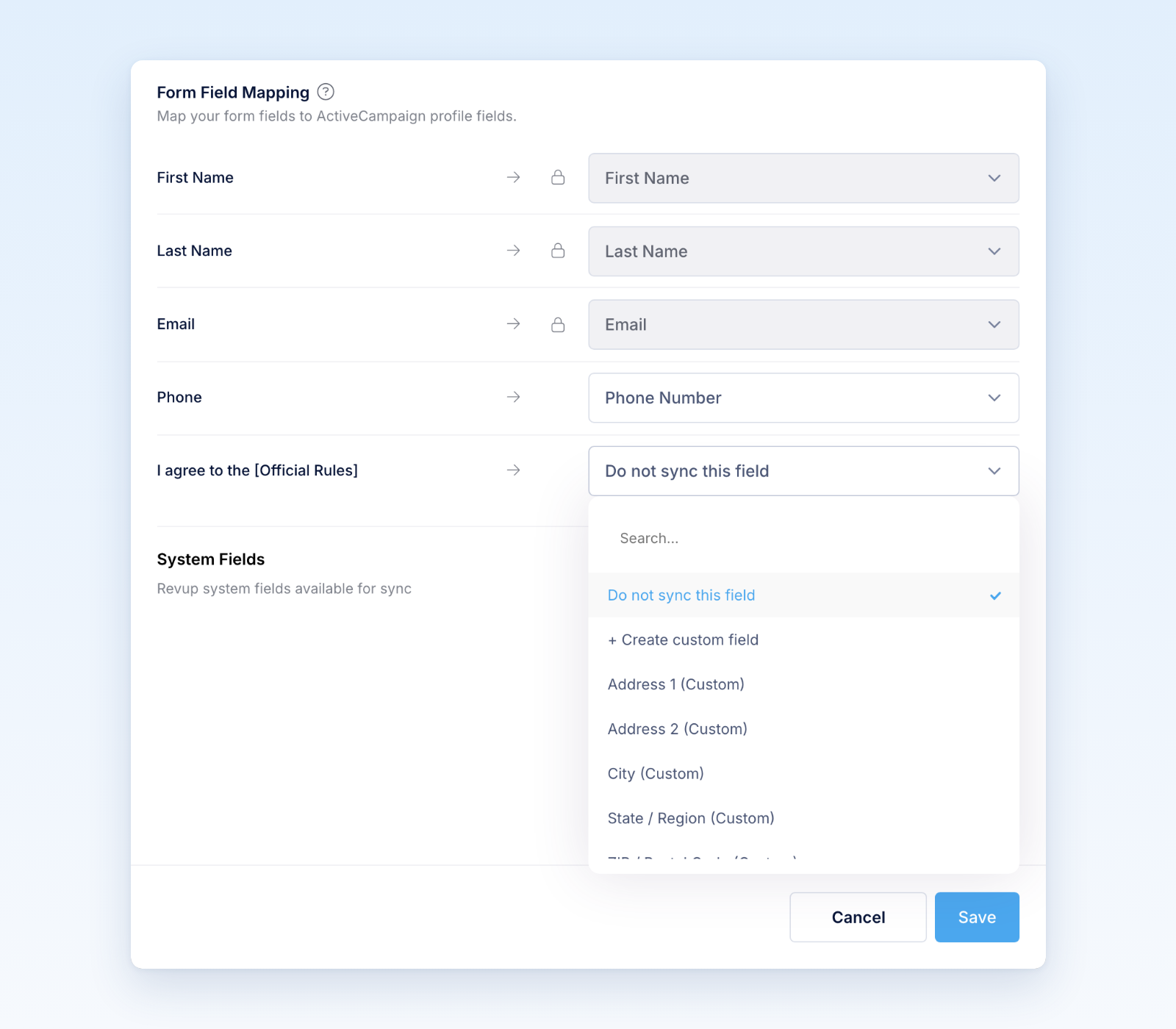
- Under Form Field Mapping, choose an ActiveCampaign field for each form field you want to send. Fields with a lock icon are mapped automatically. Choose Do not sync this field for anything you do not want to send, or + Create custom field to add a new ActiveCampaign field.
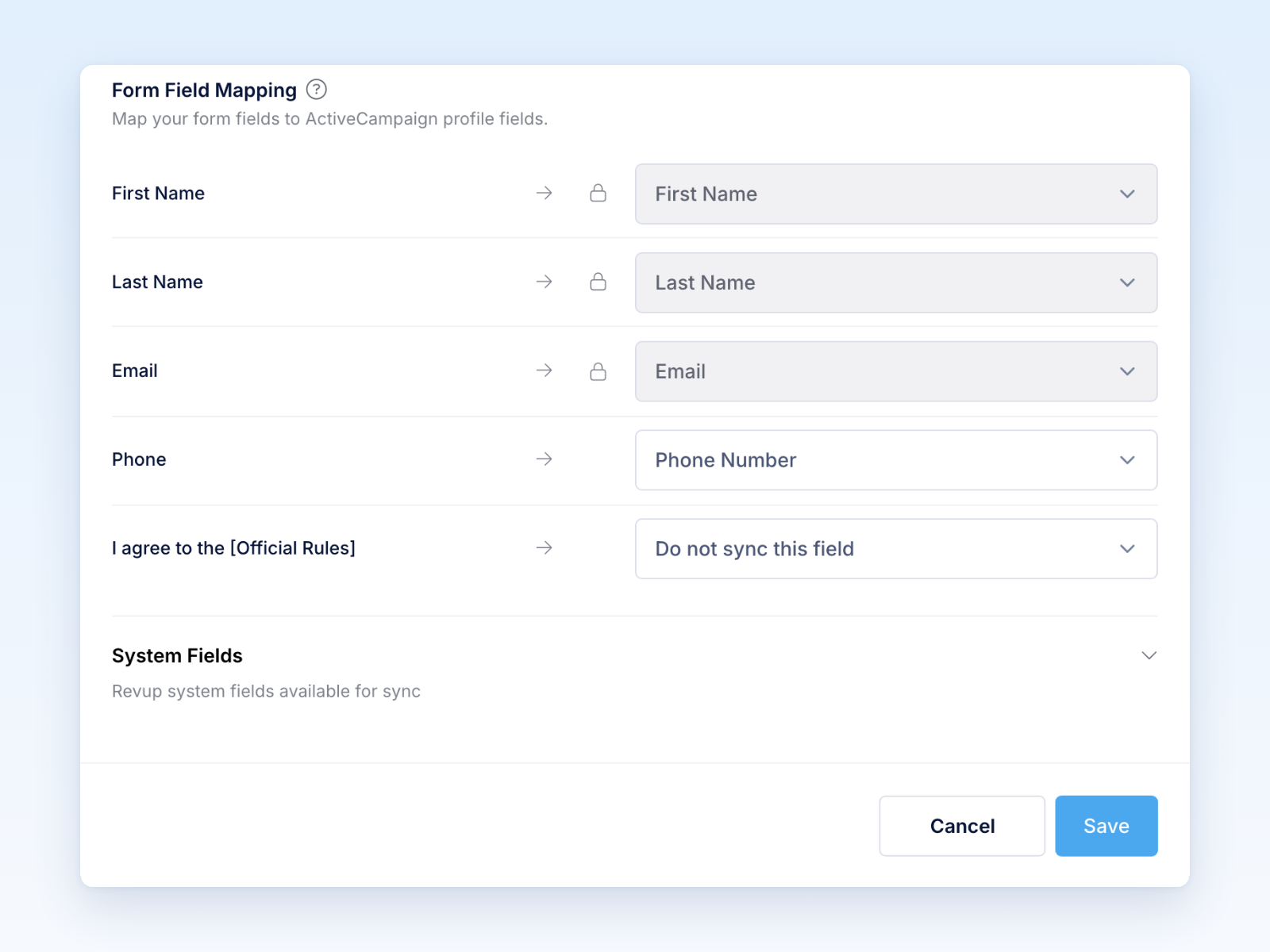
Open a dropdown to see the fields in your ActiveCampaign account. Type in Search... to find a field quickly.
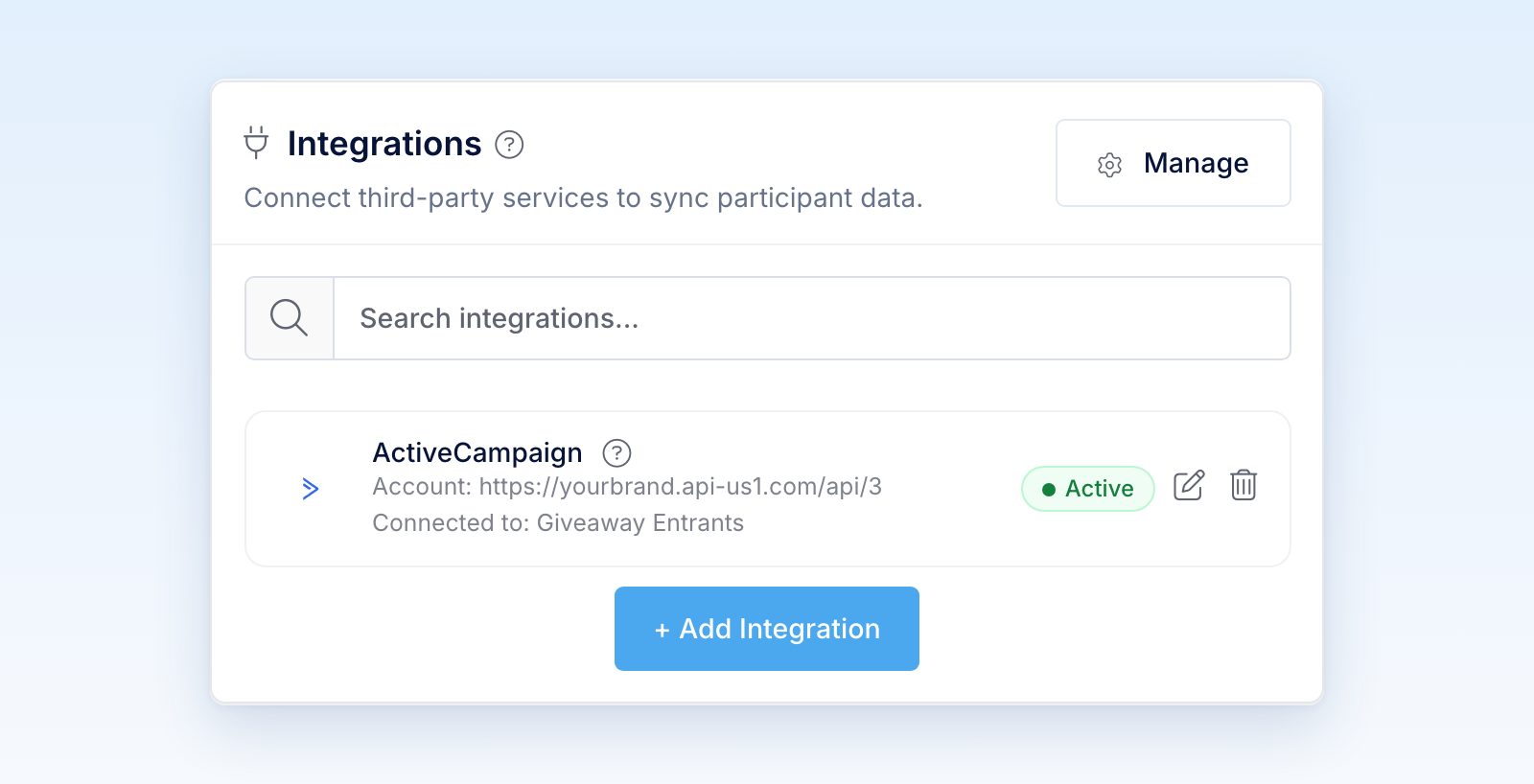
- Select Save. The ActiveCampaign card shows Active with the connected account and list.
- After the promotion starts, enter once through its public link with your own email address. Then confirm in ActiveCampaign that the contact was created, added to the list, and tagged.
Entries you submit from the builder preview are test entries. Revup never sends test entries to ActiveCampaign or any other integration, so use a real entry to check the connection.
Use ActiveCampaign in your next promotion
You only enter your API URL and key once. ActiveCampaign stays connected to your Revup account, so every promotion you create can use it.
- In the promotion builder, go to Integrations and select + Add Integration.
- Under Your Connected Accounts, select + Add next to ActiveCampaign.
- Configure ActiveCampaign opens right away. Choose the list, tags, and field mapping for this promotion, then select Save.
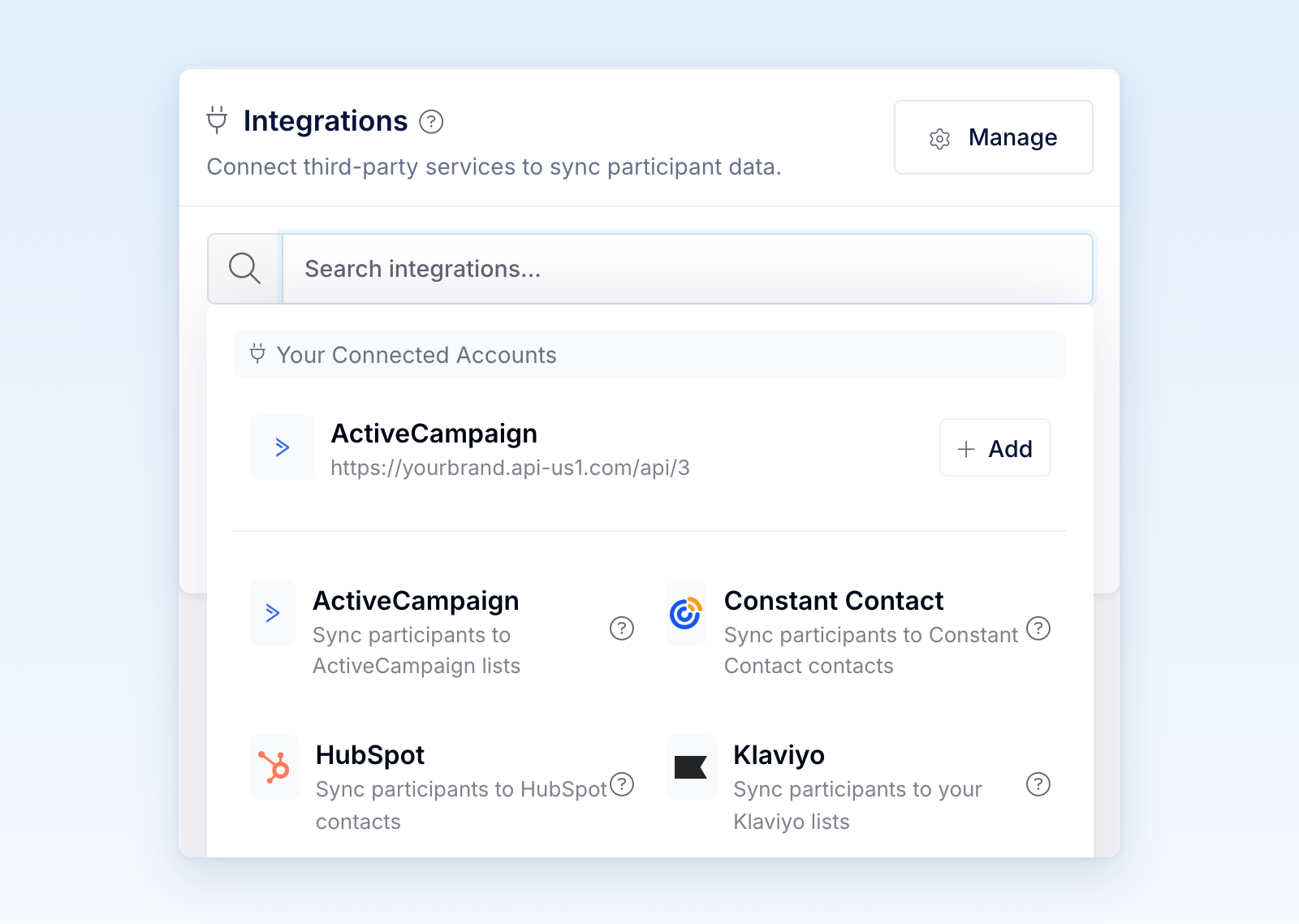
Each promotion keeps its own list, tags, and field mapping. To review every connected account in one place, select Manage in the Integrations panel or go to Account → Integrations.
What Revup sends to ActiveCampaign
Revup creates or updates the participant's ActiveCampaign contact, adds it to your list as an active subscriber, and applies your tags.
- Email, First Name, Last Name, and Phone go to the contact's standard fields. Revup stores phone numbers with the country code, for example
+12015550101. - Other form fields, such as address fields, go to ActiveCampaign custom fields. When you save, Revup creates any custom fields that don't exist yet as text fields.
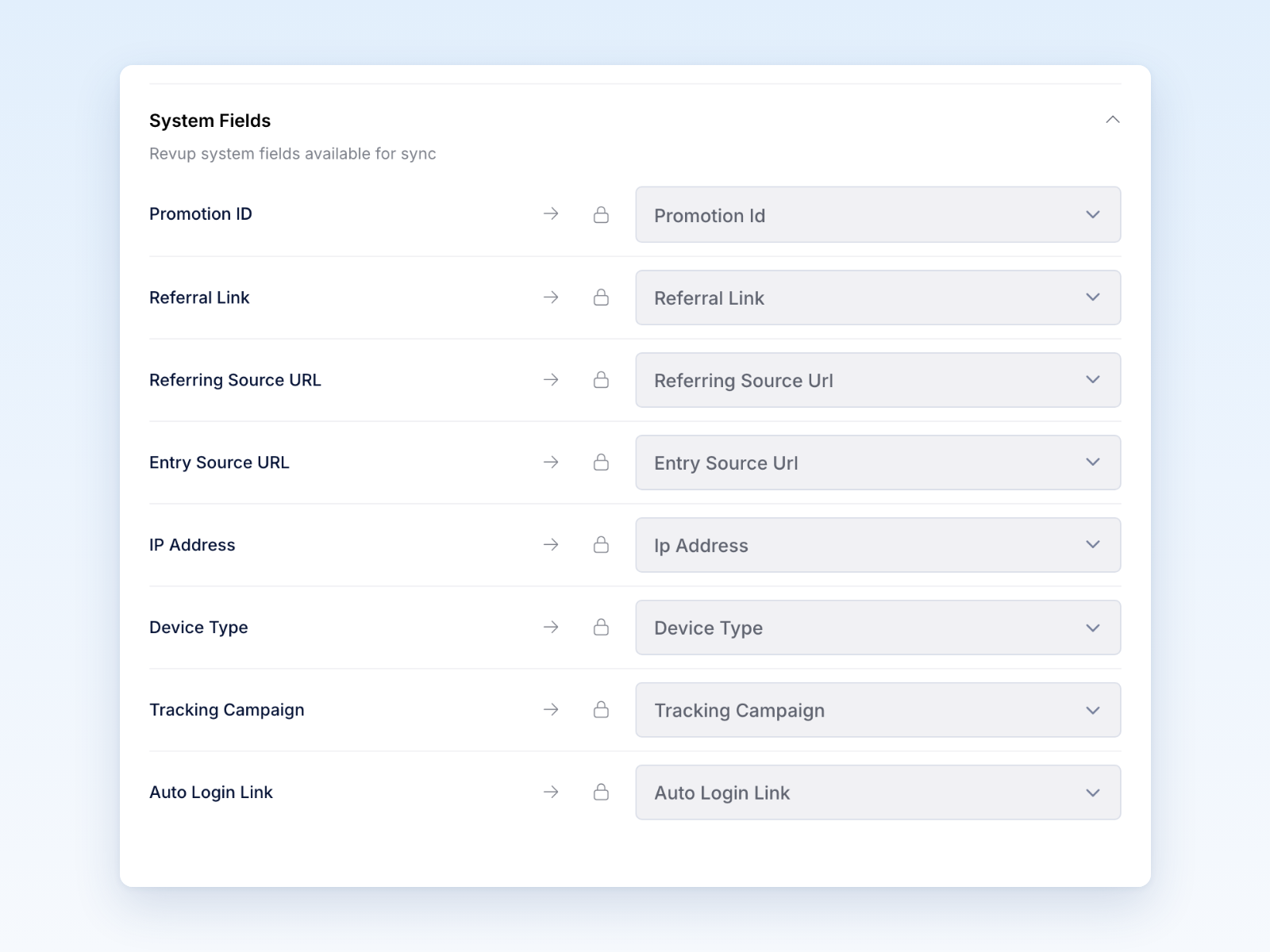
Revup also sends these system fields as ActiveCampaign custom fields. They are locked in the System Fields section of Configure ActiveCampaign and are always sent when they have a value.
If the participant is already in ActiveCampaign, Revup updates their existing contact instead of creating a new one. Each field holds the value from their most recent entry, and a blank value never clears a field. New tags are added, and tags the contact already has are kept.
Email and SMS consent
Connecting ActiveCampaign does not create consent. If your form has an Email Consent field and the participant leaves it unchecked, Revup does not send them to ActiveCampaign at all. If your form has no Email Consent field, Revup adds every participant to the list as a subscriber.
If your form has an SMS Consent field and the participant leaves it unchecked, Revup leaves their phone number off the contact. The contact is still sent.
Segment contacts by promotion
Use tags to group everyone who entered a specific promotion. Promotion ID only holds each participant's most recent promotion, so a tag is more reliable.
- In Configure ActiveCampaign, add a tag that is unique to the promotion, for example
summer-coffee-giveaway. - In ActiveCampaign, create a segment with the condition Tags: has tag and choose your promotion's tag.
- Use the segment to target follow-up campaigns, or start an automation when a contact gets the tag.
Add a referral link to an ActiveCampaign email
Add a participant's personal share link to any ActiveCampaign email or automation with the %REFERRAL_LINK% personalization tag.
When your promotion has a Share with friends bonus action, friends who enter through this link count toward the participant's bonus entries. The link always points to the participant's most recent promotion, so send referral emails while that promotion is running.
Add a return link to an ActiveCampaign email
Use the %AUTO_LOGIN_LINK% personalization tag to bring participants back for daily entries or bonus actions without making them fill out the form again.
This link is private to each participant. Use it only in one-to-one emails and automations, never in public posts or shared pages.
Disconnect ActiveCampaign
- Stop syncing one promotion: In that promotion's Integrations panel, select the trash icon on the ActiveCampaign card, then Yes, remove. The ActiveCampaign account stays connected for your other promotions.
- Disconnect the account everywhere: Go to Account → Integrations. Under Connected Integrations, open the actions menu on the ActiveCampaign row and select Disconnect. If promotions use the account, confirm with Yes, disconnect from all; Revup removes ActiveCampaign from those promotions.
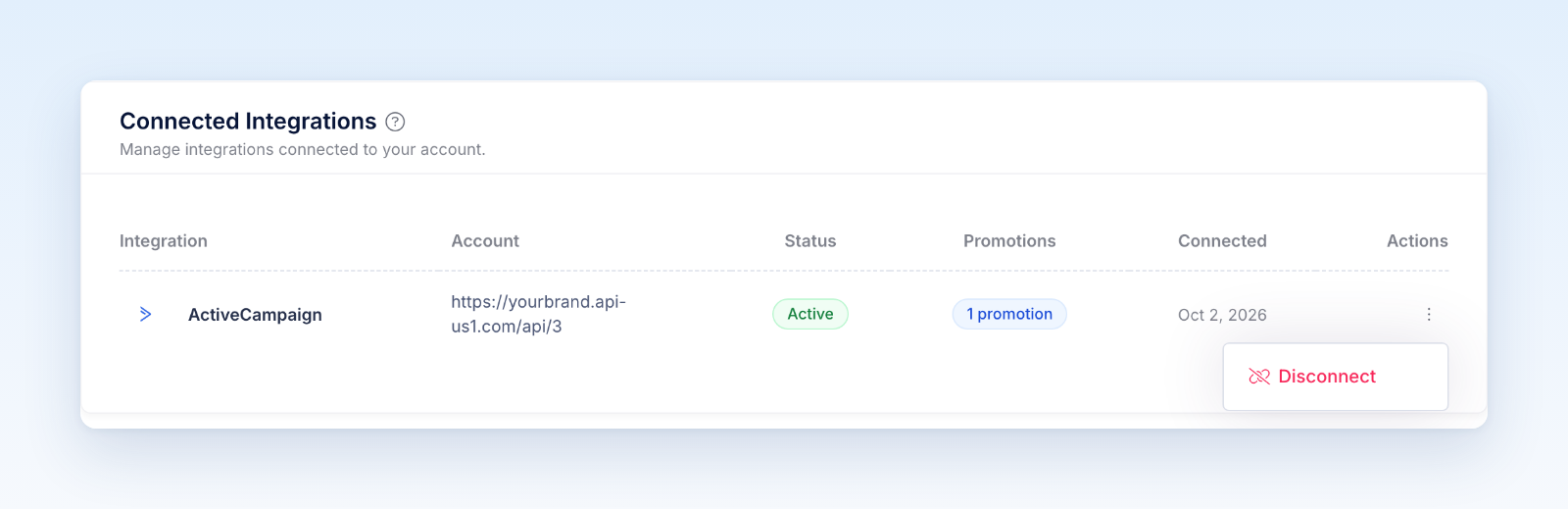
Disconnecting stops future syncs and deletes the API key from Revup. It does not remove contacts, list members, or tags already sent to ActiveCampaign. To make sure the old key can't be used anywhere else, regenerate your API key in ActiveCampaign under Settings → Developer.
Troubleshooting
If you can't connect, check the message in Connect ActiveCampaign:
- ActiveCampaign API URL is missing or invalid: Copy the API URL exactly as shown in ActiveCampaign under Settings → Developer, including
https://. - ActiveCampaign API error (HTTP 401) or (HTTP 403): The API key is wrong or was regenerated. Copy the current key from Settings → Developer.
If a participant does not appear in ActiveCampaign or on your list, check these in order:
- Test entry: Entries from the builder preview are test entries and are never sent.
- Email consent: Participants who leave an Email Consent field unchecked are not sent.
- Existing contact: If the email was already in ActiveCampaign, Revup updated that contact instead of creating a new one. Search ActiveCampaign by email address.
- Setup Required: If the ActiveCampaign card shows Setup Required instead of Active, select the edit icon, choose a list, and select Save.
- Trial limit: During a trial, integrations sync only the first 20 participants across your account.
- Connection: Check that the card shows Active, the selected list still exists, and the email address is valid. Then open the participant, go to Activity, and select the retry icon (Retry ActiveCampaign) next to the failed delivery.
Was this helpful?
Still need help? Ask the team