Publish and embed the contest gallery
Configure the public gallery, choose which submission details appear, and install it on your website.
Choose what visitors can see
The contest gallery displays approved submissions and, when enabled, lets visitors open details and vote.
Configure the gallery
- Open the contest builder and go to Post-Entry → Gallery → Gallery settings.
- Write the gallery heading and instructions.
- Choose the submission information that may appear publicly.
- Configure ordering or randomization options available to the contest.
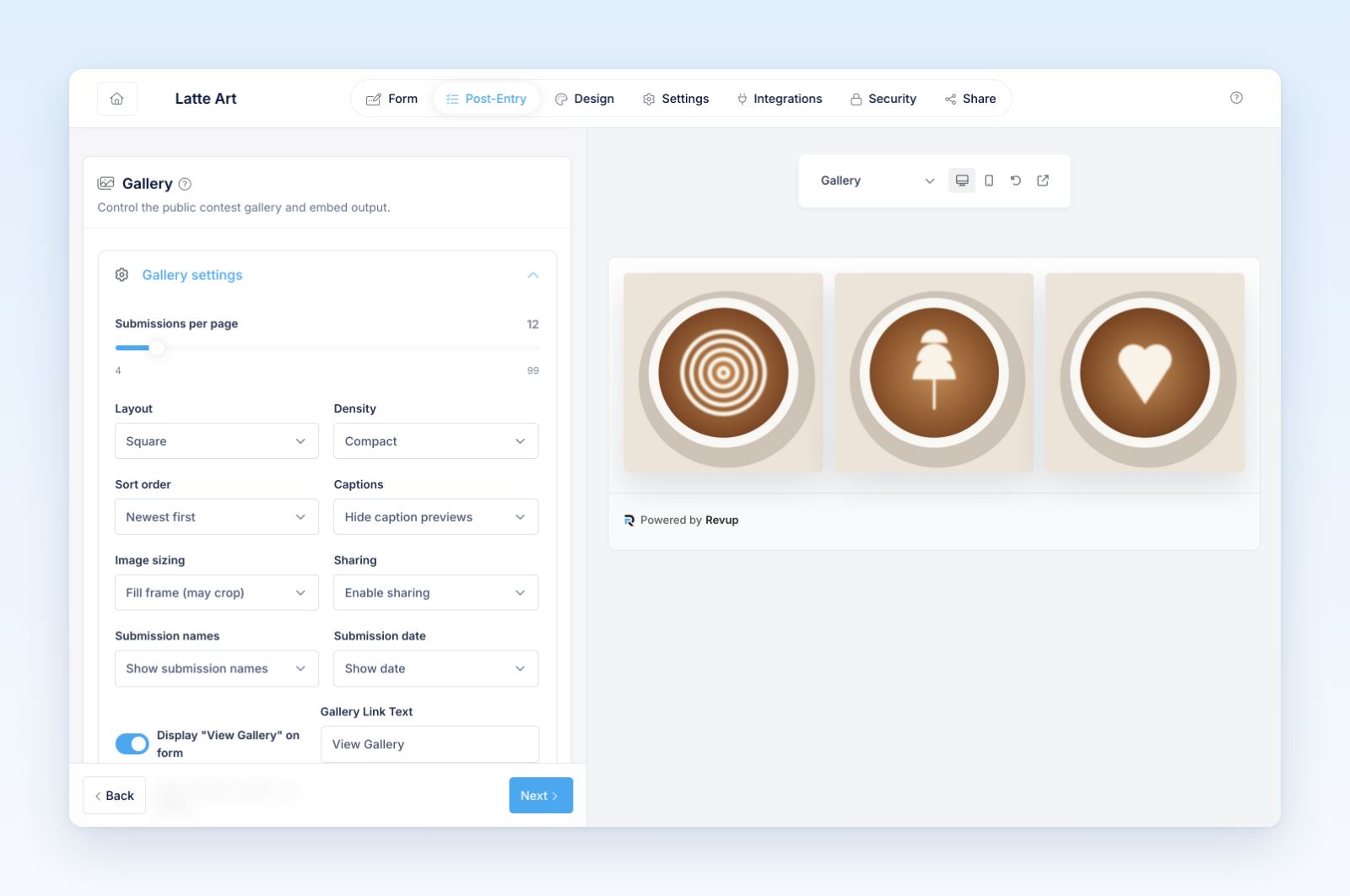
- Decide whether vote totals are visible.
- Enable and label the Enter Contest call to action when the gallery should lead visitors to the entry form.
- Review the design and every enabled language.
Only approved, non-hidden submissions should appear. Confirm that captions, participant labels, and media are appropriate for public display.
Install the gallery
- Open Share in the contest builder.
- Choose the gallery placement.
- Copy the provided embed or use the hosted gallery link.
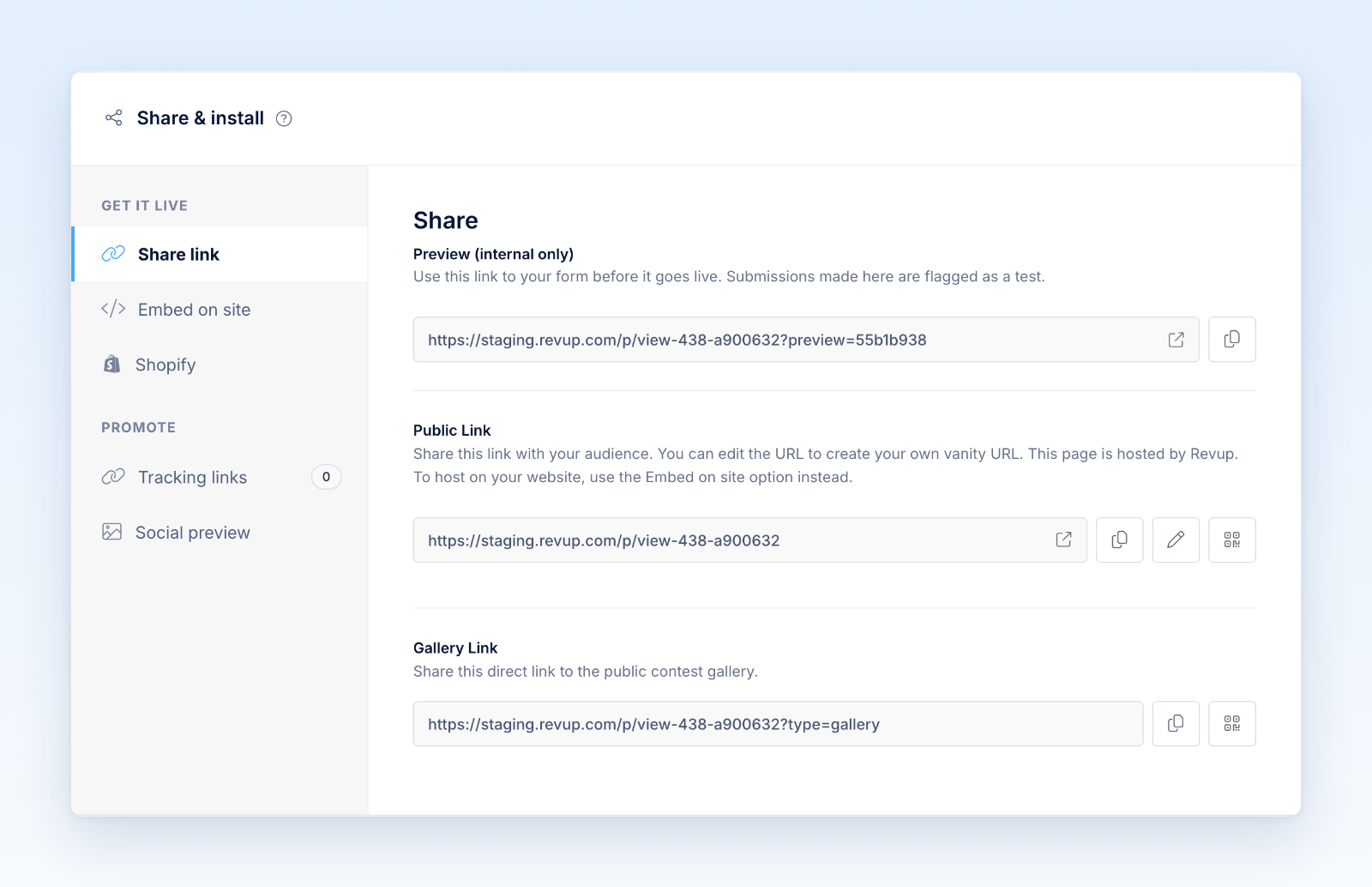
- Add it to the intended website page.
- Test outside the builder preview.
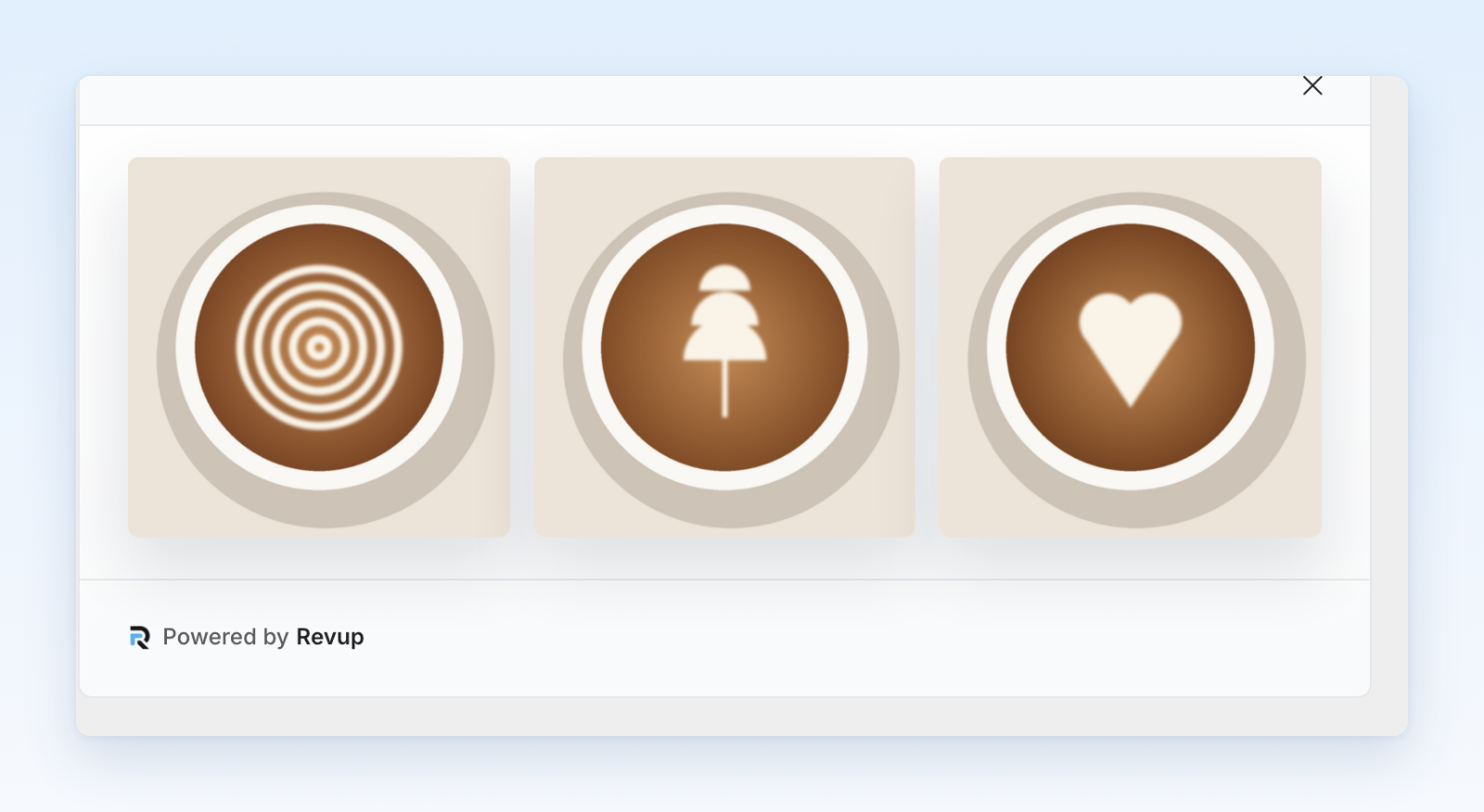
Test the public experience
- Empty and loading states
- Grid and detail view on mobile and desktop
- Photo and video playback
- Long captions and unusual aspect ratios
- Pagination or continued loading
- Entry call to action
- Voting, verification, and voting-closed states
- Direct links to a single submission
The gallery may receive more traffic than the entry form. Test the real page with its theme, scripts, cookie tools, and content security rules before announcing the contest.
Was this helpful?
Still need help? Ask the team