Connect HubSpot
Connect HubSpot to a Revup promotion, choose a contact list, map fields, and confirm participants reach HubSpot.
Before you start
- Sign in to the HubSpot account that should receive participants, with permission to connect apps.
- Create a static contact segment in HubSpot for the participants you want to collect. HubSpot calls these Segments; Revup's setting is labeled HubSpot List. Active segments and segments for other record types are not available in this dropdown. See HubSpot's guide to creating segments.
- Your form needs a visible Email field. HubSpot matches contacts by email address.
- Purchase Sweepstakes promotions do not have an Integrations tab, so you cannot connect HubSpot to them.
Connect HubSpot to a Revup promotion
- Open the promotion builder, go to Integrations, and select + Add Integration.
- Choose HubSpot from the available integrations. If your account already has HubSpot connected, use + Add next to it under Your Connected Accounts instead.
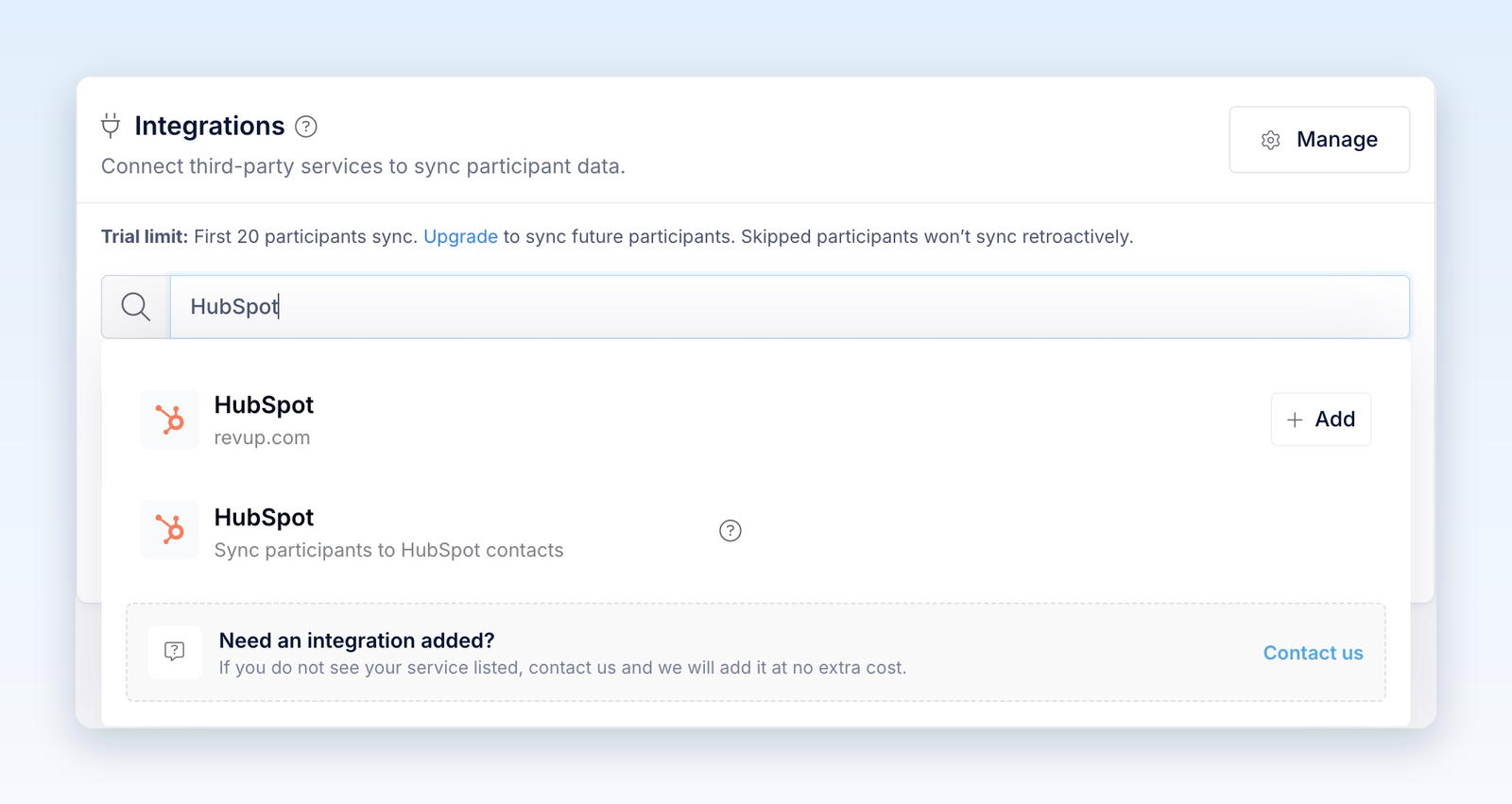
- In the HubSpot window, sign in if needed, choose the account you want to connect, and approve Revup's requested access. You do not need to copy an API key. When authorization finishes, return to Revup.
- In Configure HubSpot, choose the HubSpot List that participants should join. If you just created a static contact segment, select the refresh icon next to the list to load it.
- Under Form Field Mapping, choose a HubSpot contact property for each form field you want to send. Email is locked and mapped automatically. Choose Do not sync this field for anything you do not want to send, or + Create custom field to create a text property in HubSpot.
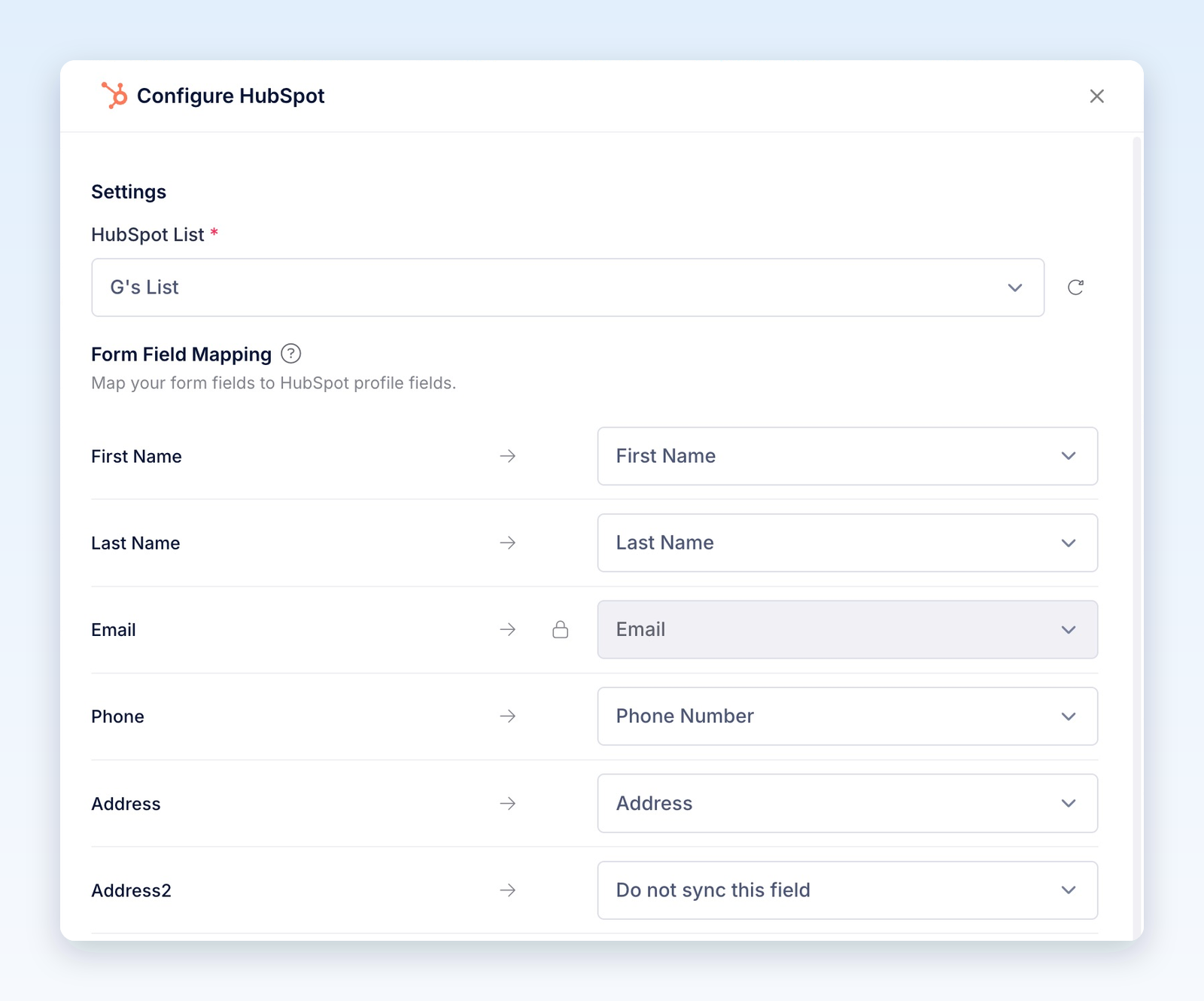
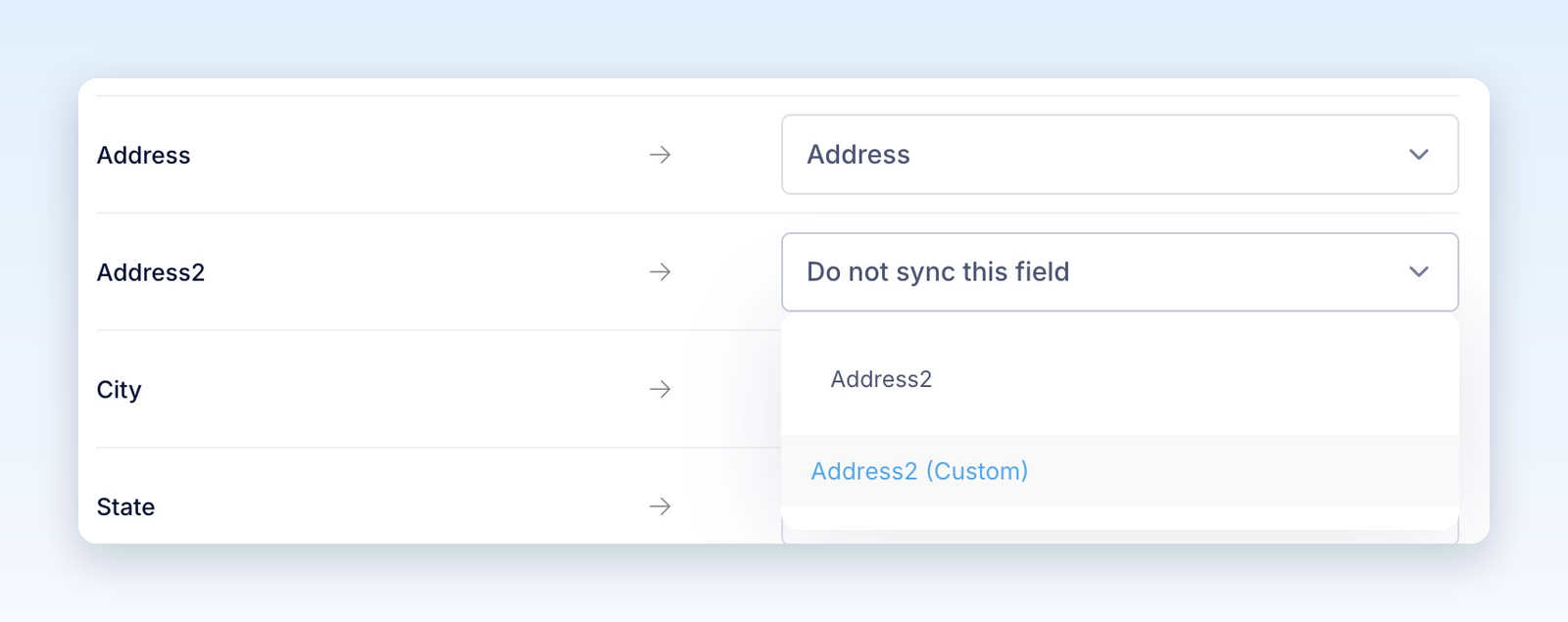
Open a mapping dropdown and use Search... to find a property. Review every field before saving: a field set to Do not sync this field stays in Revup and is not sent to HubSpot.
Address Line 2 needs its own mapping. It is separate from Address and is not mapped automatically. On the Address2 row, choose an existing custom property such as Address2 (Custom), or create one. Mapping Address alone does not send the second address line.
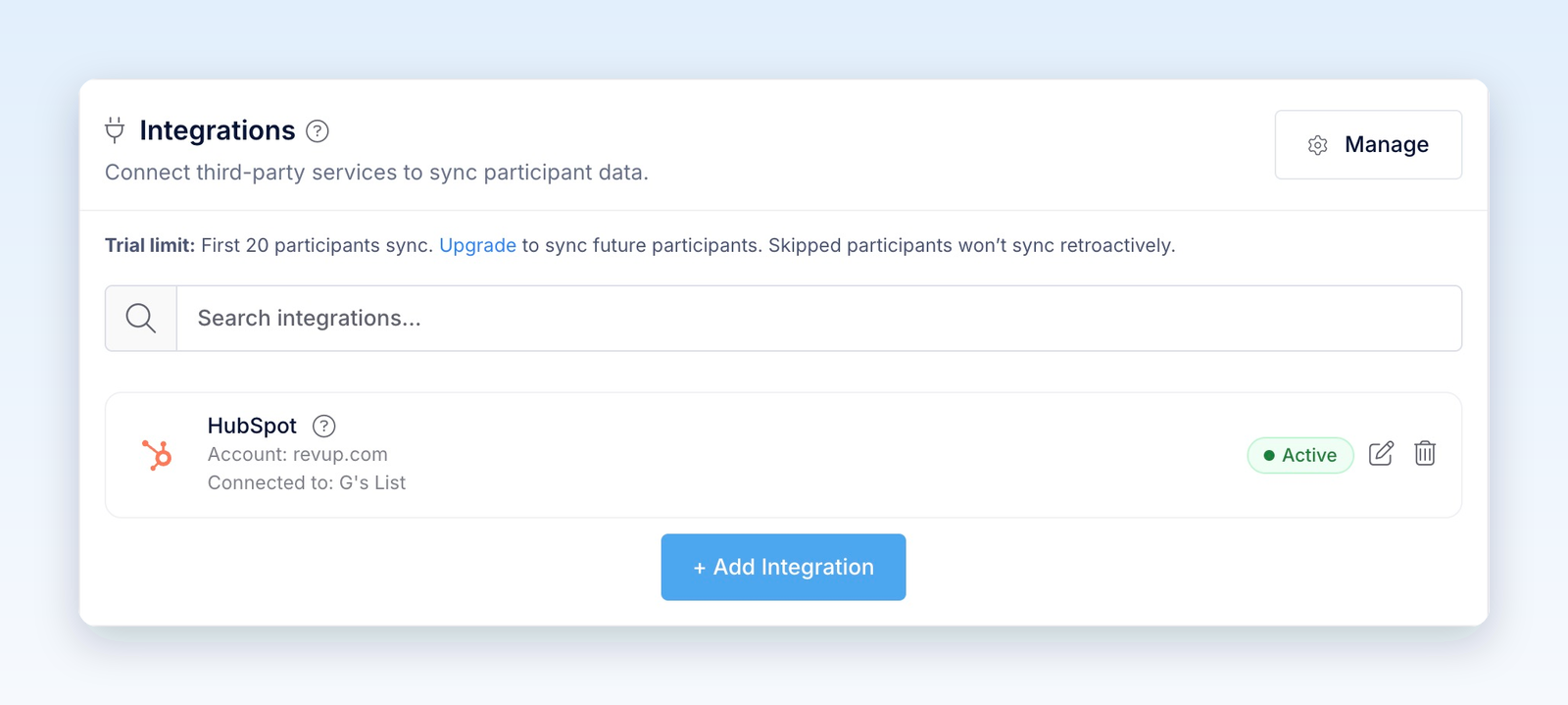
- Select Save. The HubSpot card shows Active with the connected account and list.
- After the promotion starts, enter once through its public link with your own email address. In HubSpot, search for that email, confirm the mapped properties, and check that the contact belongs to the selected static segment.
Entries submitted from the builder preview are test entries. Revup never sends test entries to HubSpot or any other integration, so use a real entry to check delivery. Active confirms that the integration is configured; the public-entry check confirms that data reaches HubSpot.
Use HubSpot in your next promotion
HubSpot stays connected to your Revup account, so you can reuse it without authorizing it again for every promotion.
- In the next promotion's builder, go to Integrations and select + Add Integration.
- Under Your Connected Accounts, select + Add next to the HubSpot account you want to use.
- In Configure HubSpot, choose the list and field mapping for this promotion, then select Save.
Each promotion keeps its own list and field mapping. To review connected accounts, select Manage in the Integrations panel or go to Account → Integrations.
What Revup sends to HubSpot
For each eligible entry, Revup creates or updates the contact with that email address and adds it to your selected static contact segment.
- Standard mappings include First Name, Last Name, Email, Phone Number, Address, City, State, ZIP / Postal Code, and Country.
- Other answers can be mapped to existing HubSpot contact properties or new custom text properties. Match the answer to the property's format: date, number, and dropdown properties may reject incompatible values.
- Only mapped fields with a value are sent. A blank value does not clear an existing HubSpot property.
Revup also creates any missing system properties when you save. These eight fields are locked in System Fields and are sent when they have a value.
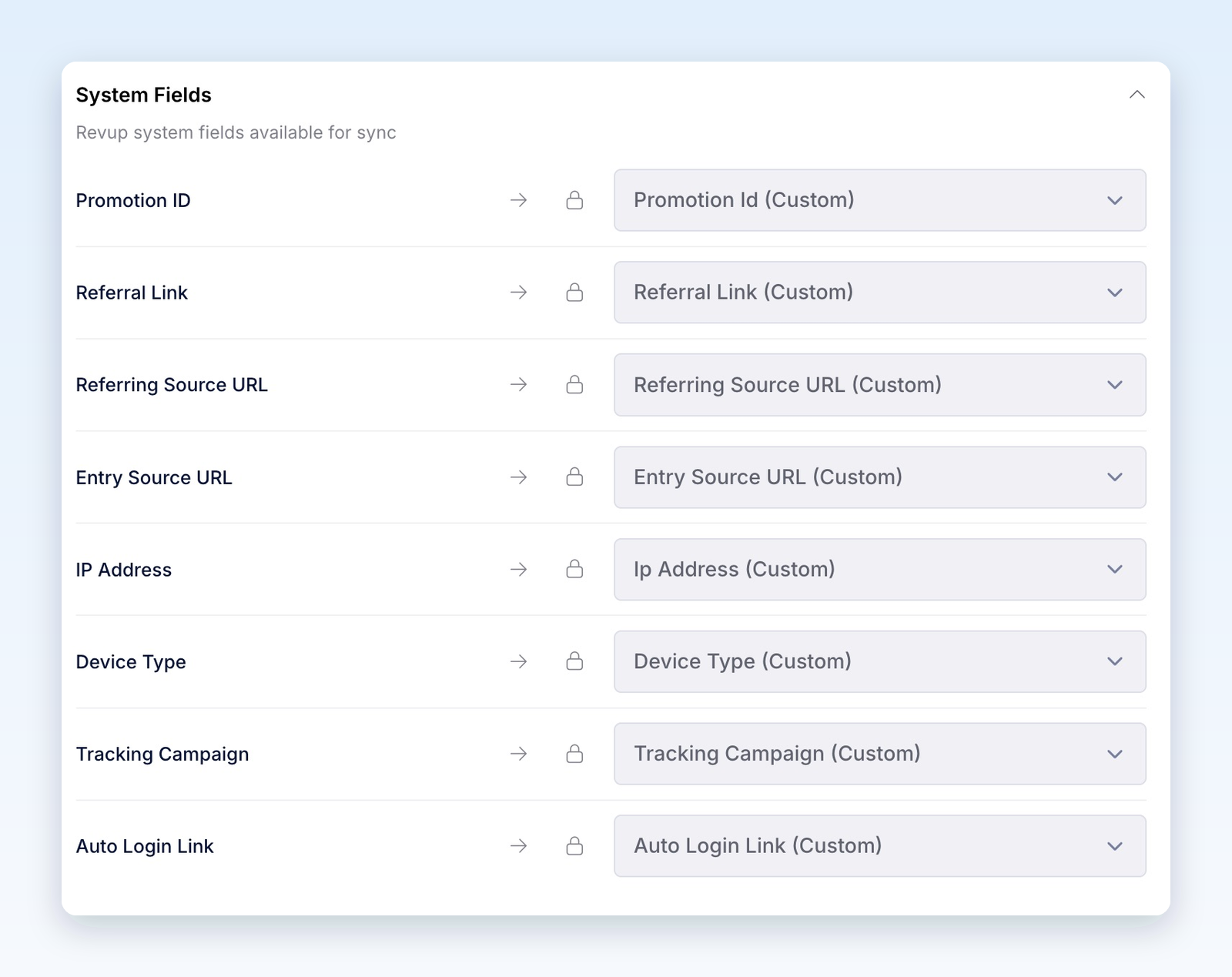
If the same person enters another connected promotion with the same email, Revup updates that contact. These properties hold the most recently synced values, rather than a history of every promotion entered.
Email and SMS consent
If your form has an Email Consent field and the participant leaves it unchecked, Revup does not send that participant to HubSpot. If there is no Email Consent field, this consent check does not prevent the contact from syncing.
If your form has an SMS Consent field and the participant leaves it unchecked, Revup leaves their phone number out of the sync. The contact can still be sent. Omitting the phone number does not erase one already stored in HubSpot.
Creating a contact and adding it to a segment does not automatically subscribe it to a HubSpot email subscription type. Revup does not enroll contacts in workflows or explicitly set their marketing contact status. Review subscription permissions, marketing contact settings, and any follow-up workflows in HubSpot before sending campaigns. HubSpot's integration marketing-contact settings guide explains how contacts created by connected apps get their marketing status.
Group contacts by promotion
Choose a separate static contact segment for each promotion if you want to keep its audience together. Promotion ID is updated by later syncs, so filtering on that property alone will not preserve a participant's full promotion history.
In Configure HubSpot, select that promotion's segment under HubSpot List. Revup adds contacts to it without removing their existing memberships in other segments. You can use the segment in HubSpot's own campaigns or workflows, subject to your HubSpot plan and settings.
Use referral and return links in HubSpot emails
The Referral Link and Auto Login Link properties are available as contact properties for HubSpot email personalization. Use HubSpot's personalization token guide to insert the appropriate contact property, then preview or send a test email using your test contact's values.
- Referral Link: lets participants share the promotion. When you enable a Share with friends bonus action, eligible friends who enter through that link count toward referral bonus entries.
- Auto Login Link: brings a participant back to their own entry for daily entries or bonus actions. This link is private. Send it only to that participant; never put it in a public post or shared page.
Both properties can change when a later promotion syncs the same contact. Check that the links belong to the intended promotion before using them in follow-up emails.
Disconnect HubSpot
- Stop syncing one promotion: In that promotion's Integrations panel, select the trash icon on the HubSpot card, then Yes, remove. HubSpot stays connected to your Revup account for other promotions.
- Disconnect the account everywhere: Go to Account → Integrations. Under Connected Integrations, open the HubSpot row's actions menu and select Disconnect. If promotions use it, confirm with Yes, disconnect from all; Revup removes the connection from those promotions.
Disconnecting stops future syncs. It does not remove contacts, property values, or segment memberships already sent to HubSpot.
Troubleshooting
If authorization does not open, allow pop-ups for Revup and try connecting again. If HubSpot refuses access, confirm that you selected the intended account and that your user can connect apps.
If a participant or field is missing, check these in order:
- Test entry: Builder-preview entries are never sent. Test through the public promotion link after it starts.
- Email consent: Participants who leave an Email Consent field unchecked are not sent.
- Existing contact: Search HubSpot by email address. Revup may have updated an existing contact instead of creating a new one.
- Setup Required: Select the edit icon, choose a list, review the mappings, and select Save. The card should show Active.
- Missing list: Make sure it is a static segment for contacts in the connected HubSpot account, then select the list refresh icon. Active segments are not supported as a sync destination.
- Missing field: Open Form Field Mapping and check the destination. Address2 requires its own mapping. Also check that the submitted value is not blank and matches the HubSpot property's format.
- Trial limit: During a trial, integrations sync only the first 20 participants across your Revup account. Upgrading enables future syncs; skipped participants are not synced retroactively.
- Failed delivery: Check the connected account, selected list, and field mappings. Then open the participant in Revup, go to Activity, and select the retry icon (Retry HubSpot) beside the failed delivery.
Was this helpful?
Still need help? Ask the team