Send participant data to a webhook
Connect a webhook to a Revup promotion, choose the data to send, and test a JSON delivery to your endpoint.
Before you start
- Get a public HTTPS webhook URL from the service that should receive your participant data. Revup rejects localhost, private-network, and invalid URLs.
- Your endpoint must accept POST requests with a JSON body and return a successful 2xx response. Connecting validates the URL; it does not prove that your receiver can process an entry.
- For a first test, use a request inspector such as Webhook.site with sample participant details. Use your own receiving service for customer data.
- Purchase Sweepstakes promotions do not have an Integrations tab, so this connector is not available on those promotions.
This guide covers Integrations → Webhook. The Send Webhook step in Flows is a separate feature with its own timing and request settings.
Connect a webhook to a promotion
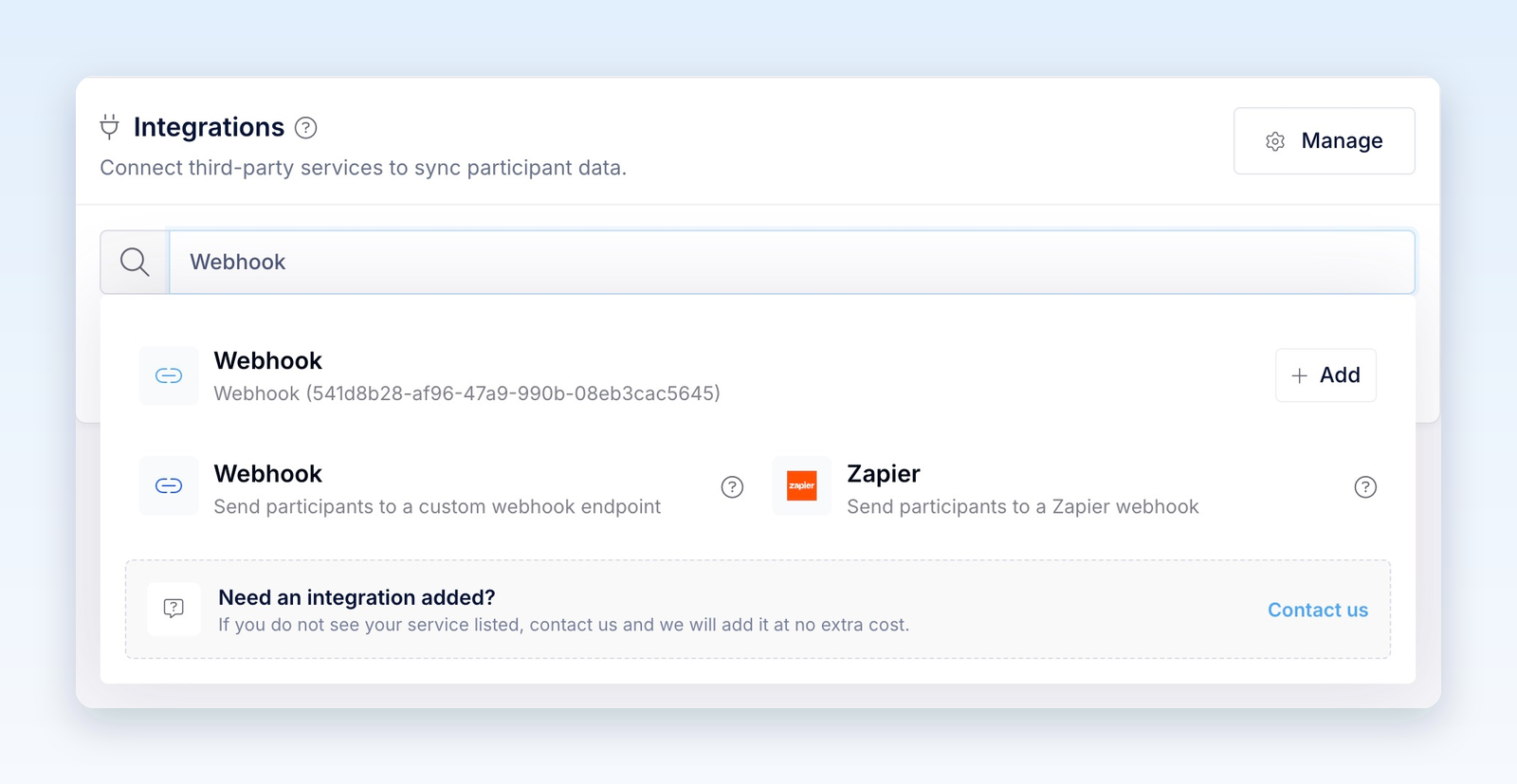
- Open the promotion builder, go to Integrations, and select + Add Integration.
- Choose Webhook. If the endpoint is already connected to your Revup account, select + Add beside that Webhook connection instead, then continue to field mapping.
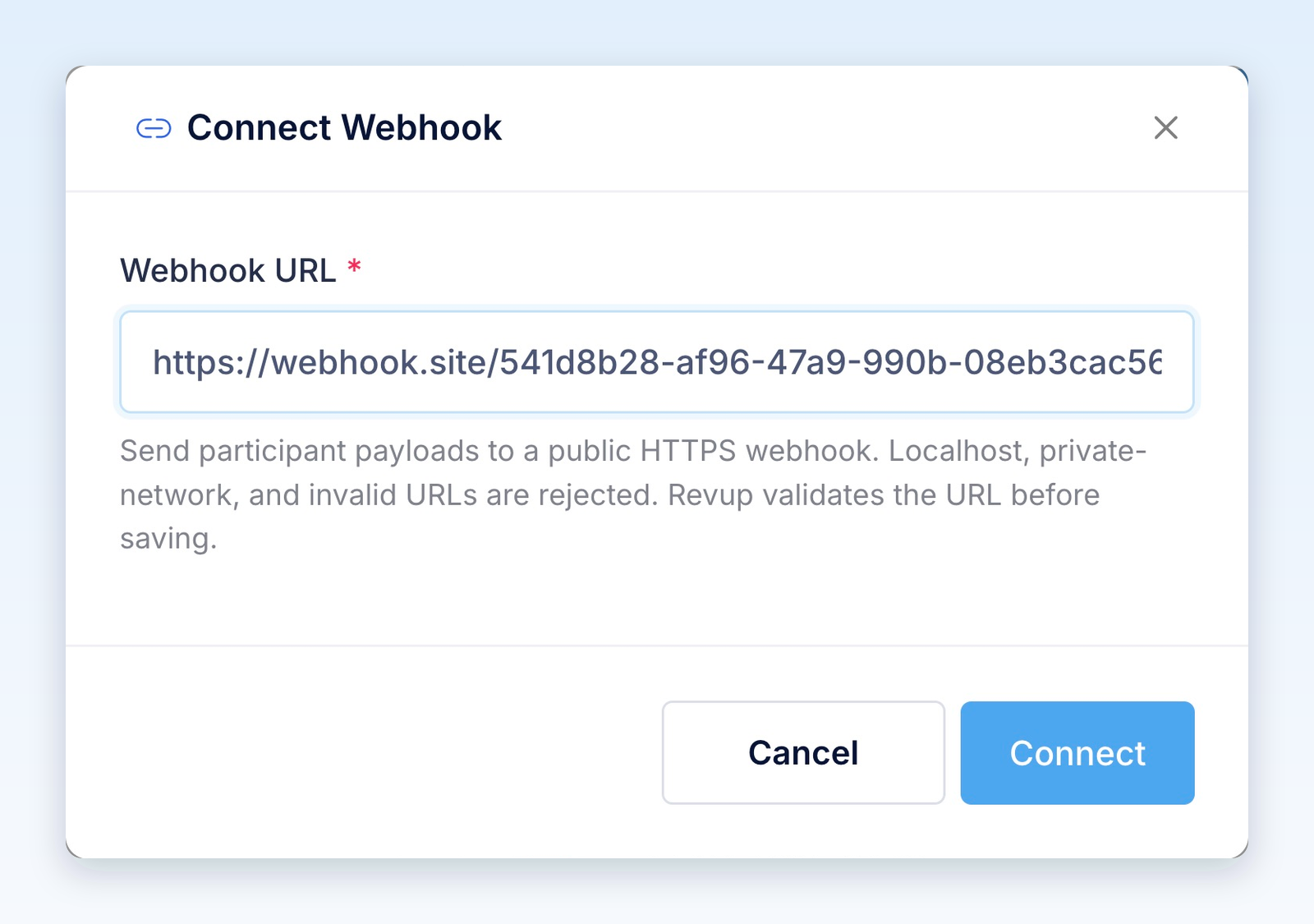
- In Connect Webhook, paste your receiving URL into Webhook URL and select Connect. You do not need an OAuth sign-in or an API key for this connector.
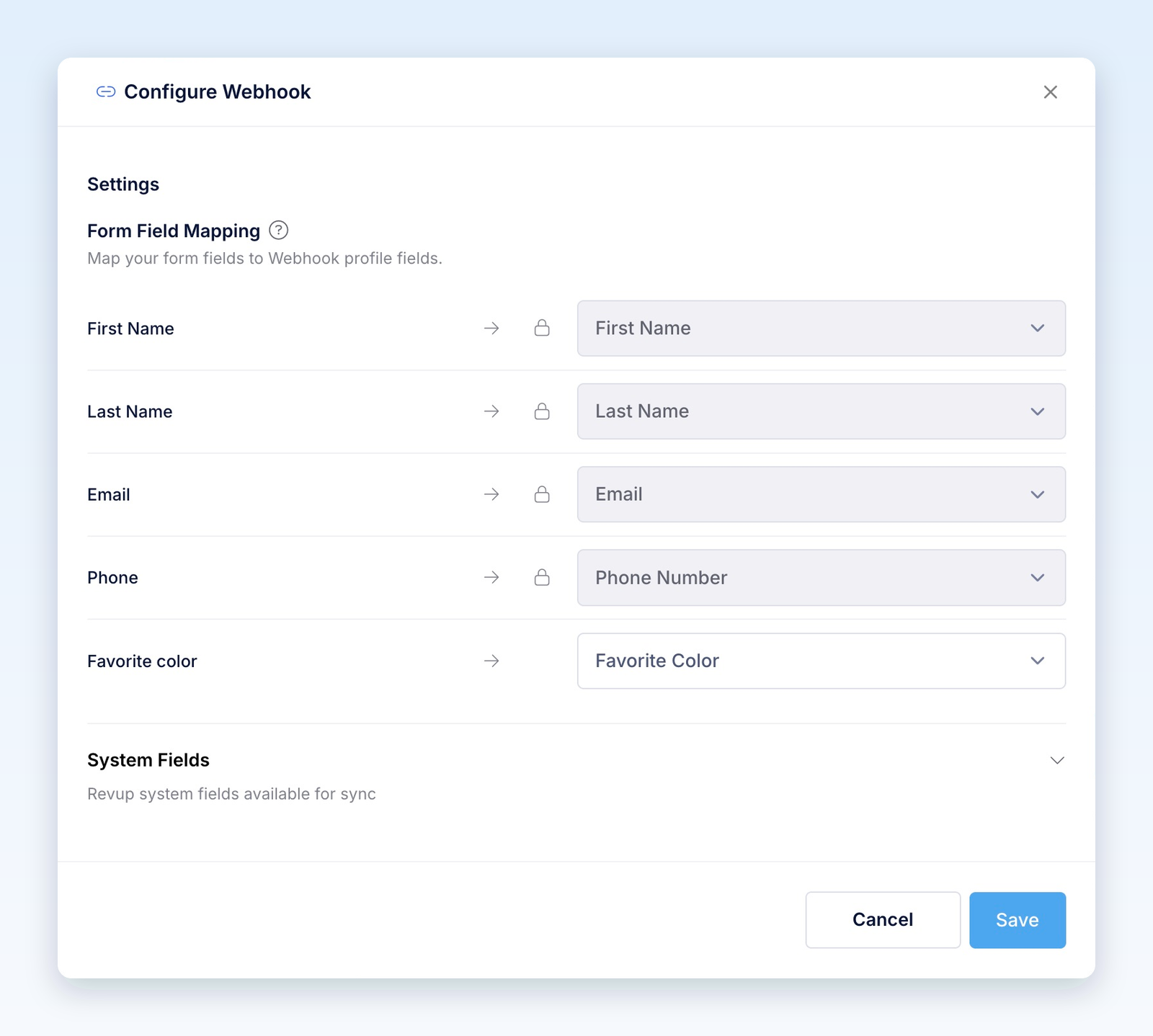
- In Configure Webhook, review Form Field Mapping. Contact fields such as First Name, Last Name, Email, and Phone are mapped automatically. The lock icon means the destination cannot be changed.
- For each other answer you want to send, open its mapping dropdown and choose + Create custom field. Enter a key such as
favorite_color, then select Create. This defines a key in your webhook'scustom_fieldsdata; it does not create a field in the receiving service. - Leave optional answers set to Do not sync this field if you do not want to send them. Review System Fields, then select Save.
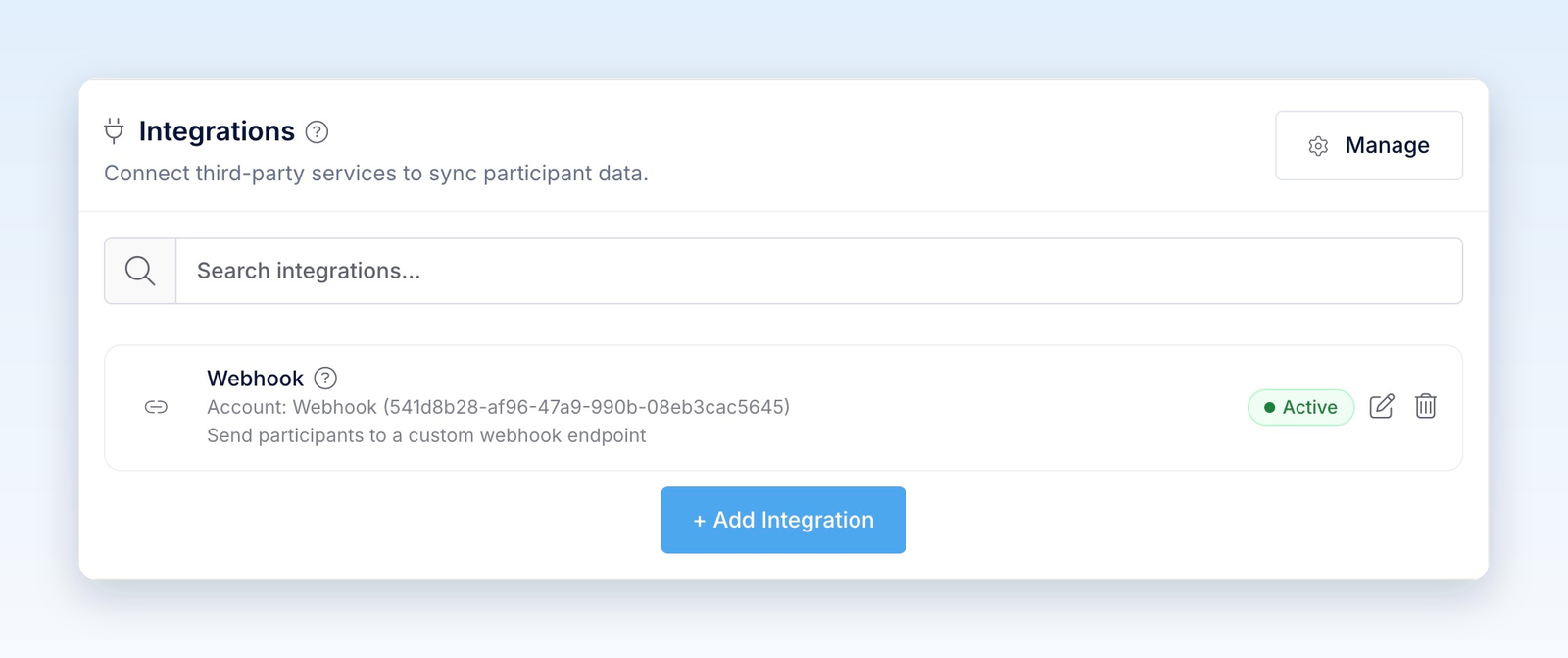
The Webhook card now shows Active. This confirms that the promotion is configured. Complete the delivery test below to confirm that the receiving endpoint works.
Test an actual delivery
- Make sure the promotion has started. Open Share → Share link and use its Public Link.
- Submit one entry with sample details and a value for each field you want to check.
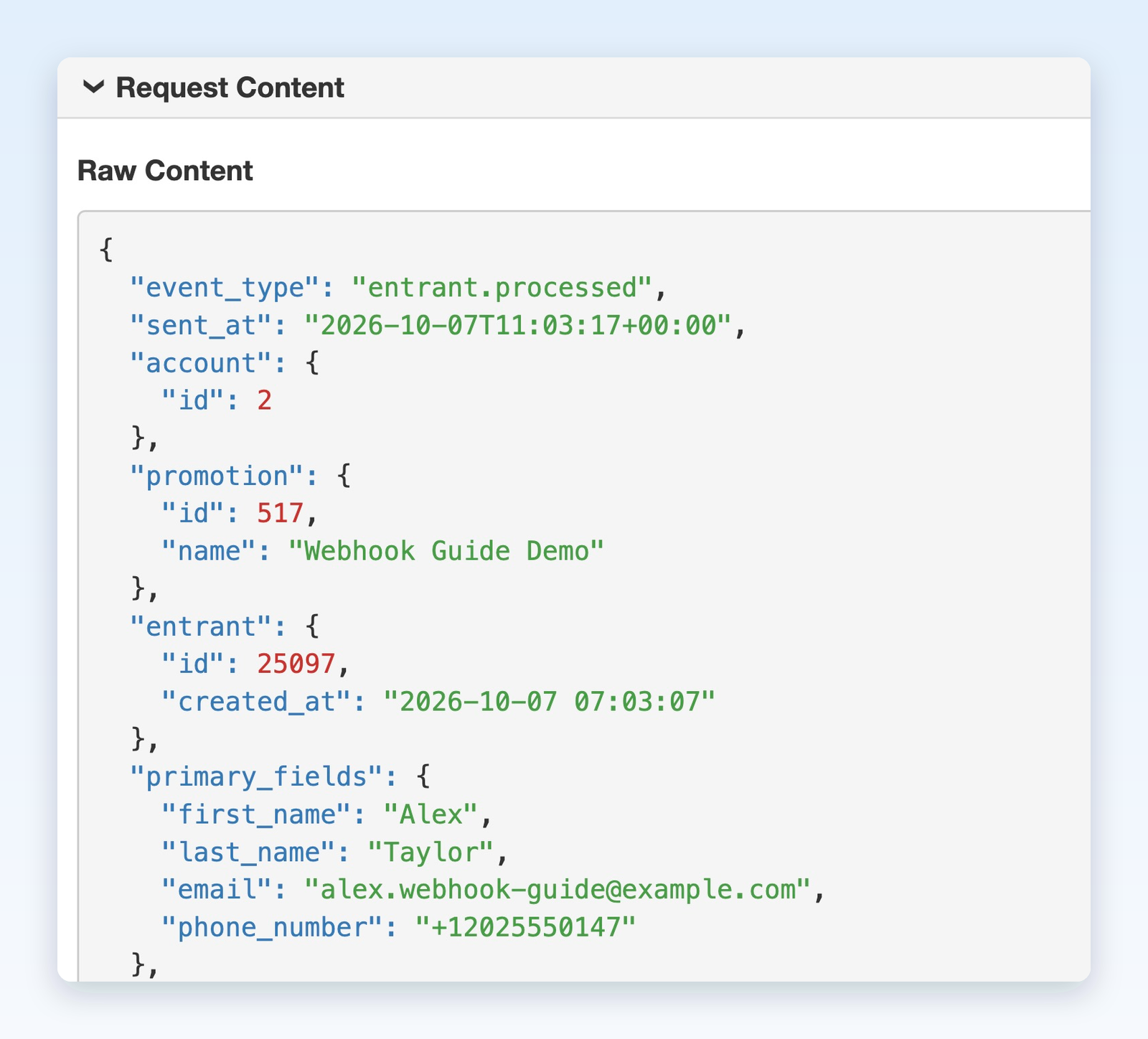
- Open your receiver's request log. Look for a POST request with
event_typeset toentrant.processedand the expected promotion and participant IDs. - Check the contact values in
primary_fields, the promotion information insystem_fields, and your mapped answers incustom_fields. For example, a Favorite color answer mapped tofavorite_colorappears ascustom_fields.favorite_color. - Confirm that your receiver returned a 2xx response. In Revup, open the participant from the promotion's Participants panel and check Activity for the integration result.
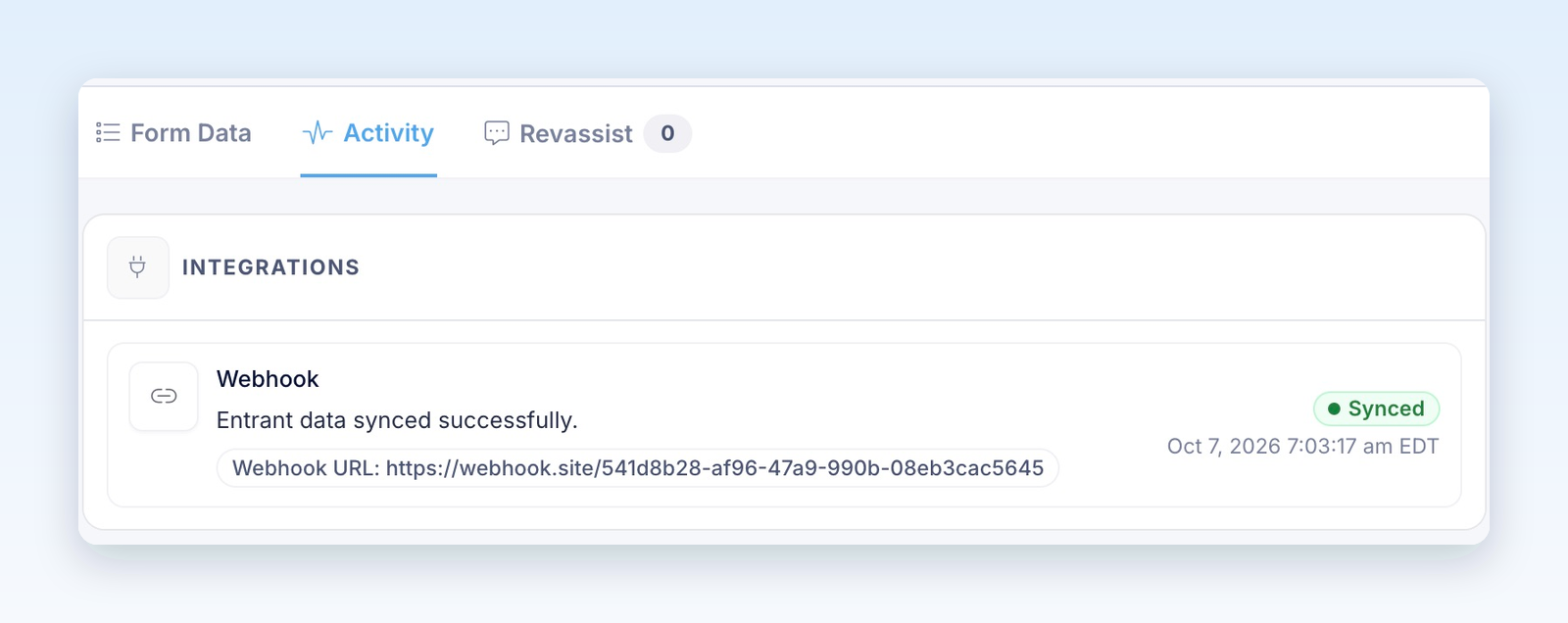
Use the public link for this test. Entries from the builder preview are flagged as test entries and are never sent to integrations. Delivery also waits for any required entry verification and processing to finish.
Understand the JSON payload
Revup sends the request with Content-Type: application/json. A normal participant event contains these sections:
Only mapped values that are available are sent. A missing or blank answer may be omitted. Read values by their key names rather than relying on the order of fields in the JSON.
Contact mappings also support address fields, including separate address and address2 keys, plus city, state, postal code, country, birthday, and gender when those fields are on the form. Custom keys should be simple and consistent: use letters, numbers, underscores, or hyphens, such as favorite_color. Avoid using the reserved contact or system keys for custom answers.
System fields
Expand System Fields in Configure Webhook to review the locked mappings. Revup includes their values when available.
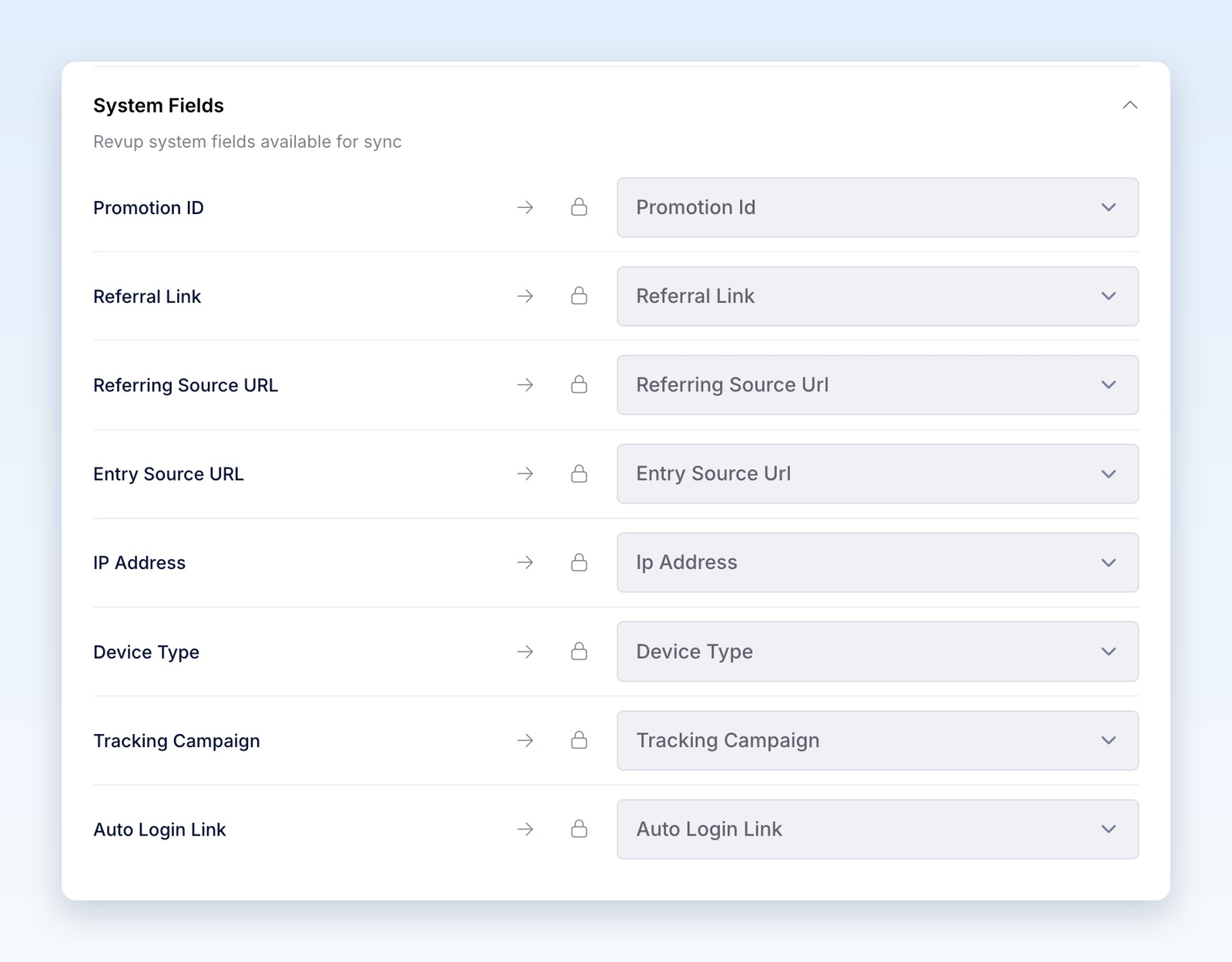
Keep Auto Login Link private. It can give access to a participant's entry. Do not put it in public logs, shared screenshots, or a message to another participant.
Payment updates
For a supported promotion with a payment field, a completed payment can produce a separate entrant.payment_paid event. It includes account, promotion, and participant information, plus payment.amount, payment.amount_cents, payment.currency, and payment.paid_at. A mapped payment field can also appear in custom_fields.
This event has a different shape from the normal participant event; it does not repeat the full primary_fields and system_fields sections. Check event_type in your receiver and test the payment path separately if you use it.
Email and SMS consent
If the form includes Email Consent and the participant leaves it unchecked, Revup removes their mapped email addresses from the normal webhook payload. If the form includes SMS Consent and it is unchecked, Revup removes their mapped phone numbers.
The normal webhook delivery can still proceed when another allowed email address or phone number remains. If consent filtering removes all allowed email and phone identifiers, Revup skips that delivery. Without a consent field for a channel, this filter does not remove that channel's value. Receiving a webhook does not itself subscribe someone to marketing messages in another service.
Reuse or remove a connection
The endpoint stays connected to your Revup account. On another promotion, go to Integrations → + Add Integration, select + Add beside the saved Webhook connection, configure that promotion's fields, and select Save. Each promotion has its own mapping.
To stop future syncing for one promotion, select the trash icon on its Webhook card and confirm Yes, remove. This leaves the account connection available for other promotions. Use Manage or Account → Integrations to manage the saved account connection. Removing a connection does not erase data already received by your endpoint.
Troubleshooting
- The URL is rejected: Use a complete public HTTPS address. Localhost, private IP addresses, and invalid destinations cannot receive these webhooks.
- The card is Active, but no request arrives: Use the public promotion link after its start time, not the preview. Check entry verification, consent, account limits, and the participant's Activity. Saving the integration does not send existing participants automatically.
- A custom answer is missing: Check its mapping and submitted value. Do not sync this field excludes it from the payload. Look for the key under
custom_fields, not at the top level. - The receiver rejects the request: Check that it accepts a JSON POST and returns a 2xx status promptly. A login page, 4xx error, 5xx error, or timeout is not a successful delivery.
- A delivery failed: Fix the endpoint or mapping problem, then review the participant's Activity. Use the retry control when available. If the receiving service may already have processed the request, check its logs before retrying to avoid duplicate actions.
- Trial limit: Trial integrations sync only the first 20 participants across the Revup account. Upgrading enables future syncs; skipped participants are not synced retroactively.
For your developer: the connector has no custom authentication-header or signing-secret setting, and requests do not carry a Revup signature. Validate incoming data and design the receiver to tolerate repeat deliveries without repeating business actions. Do not treat an unsigned request alone as proof that Revup sent it.
Was this helpful?
Still need help? Ask the team