Configure RevAssist participant chat and FAQs
Configure participant chat and FAQs, then review conversations for a participant or your whole promotion.
Enable participant questions separately from promotion creation
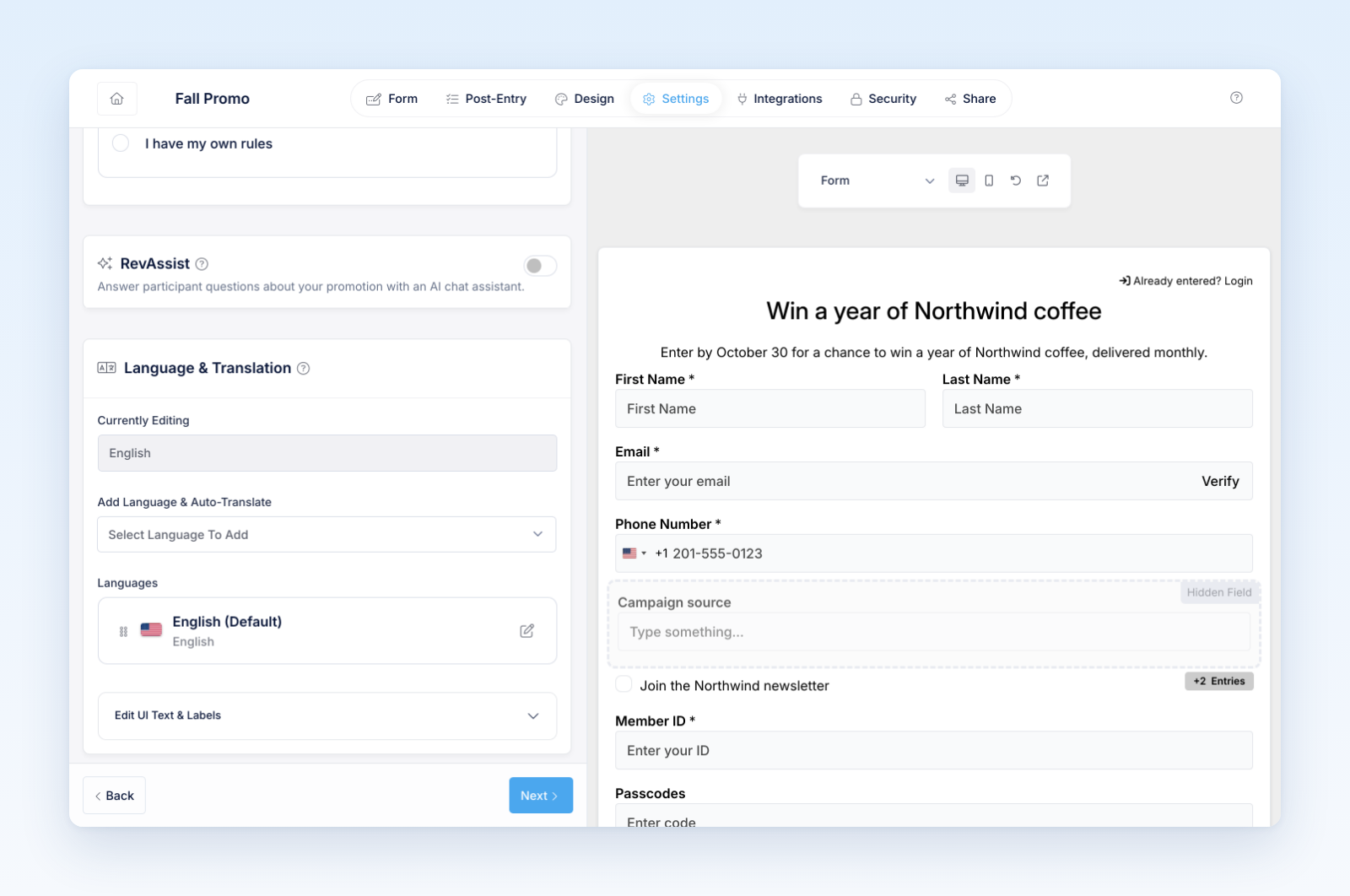
Settings → RevAssist controls the AI chat assistant participants can use to ask about the promotion. The Create with RevAssist option in promotion creation is a separate workflow that prepares a branded starting point for your team.
Turn on Enable RevAssist participant chat in the default-language promotion. Add Contact Email for Unanswered Questions if participants should be directed to a sponsor support address when the assistant cannot answer. RevAssist can include that address when a reply calls for sponsor help. It does not display a permanent contact footer, send email, open a support ticket, or guarantee a reply from your team.
Supply clear answers
Add up to 20 Custom FAQs. Use specific questions and complete answers about the entry method, eligibility, dates, prizes, claims, or fulfillment. Keep the answers consistent with the saved promotion and official rules.
Add, remove, and reorder FAQs in the default language. In a translated version, edit the translated questions and answers; the original promotion controls their structure. Review translations after changing the original FAQs.
RevAssist uses your FAQs alongside the public promotion details and conversation history to generate answers. Even an exact FAQ question uses the assistant; saved FAQ text is not automatically returned verbatim. Conflicting or incomplete information may lead to an explanation of the uncertainty or a suggestion to contact the sponsor. Do not treat every response as independently verified or as a legal ruling.
Participants see up to three suggested questions below the message box. After a question receives a successful response, its suggestion disappears and the next available FAQ takes its place. Typing the same question also removes its suggestion, allowing differences in capitalization and spacing. Once all suggestions have been asked, the suggestions disappear; participants can still type questions. Failed requests keep the question available to retry. Without custom FAQs, the chat uses relevant default questions about the promotion.
Answer questions about recorded entries
When the promotion recognizes a participant through their current participation or normal return login, RevAssist can summarize their recorded entry total and completed bonus action awards for that promotion. Participants can ask “How many entries do I have?” or “Which bonus actions have I completed?” They do not need to provide another verification code in chat. Anonymous visitors receive general promotion guidance and can use the promotion’s normal login to return to their participation.
The total includes recorded entries from the promotion’s entry methods; the completed-action summary is not a full order or entry ledger. Missing or partial action details do not prove an action was never completed. RevAssist cannot access contact details, individual orders, private coupon codes, or internal rejection reasons. It cannot change entries or confirm acceptance, eligibility, or prize status.
View conversations for your promotion
- Open the promotion’s Revassist tab. You can also open the promotion’s three-dot menu and select Revassist conversations.
- Review the Conversations list. Each row shows the participant’s name or identifier, a preview of their first question, the date, and the message count. Conversations that are not linked to a participant show Anonymous visitor.
- Use Search conversations to find a name, email, or words from either side of a conversation. Enter at least two characters; results update after you pause typing. Use the X to clear the search and show all conversations.
- Use the All Time dropdown to choose a preset or Custom Range. Dates use the promotion’s timezone and filter when conversations started.
- Use the numbered pages or arrows to browse results. Choose 25, 50, 100, or 200 conversations per page from Show … per page.
- Select a conversation to read it. Use Back to return to the same list page and filters.
You need permission to view participants. The Revassist tab remains available when chat is enabled or saved conversations exist, so disabling participant chat does not remove access to its history.
View conversations for one participant
- Open Participants for the promotion.
- Select the participant to open their profile.
- Open the profile’s Revassist tab and select a conversation.
This view shows conversations linked to that participant in the promotion. It does not have a date filter. Anonymous conversations are available in the promotion-wide overview; they are not listed under a participant unless they have been linked to that participant.
Consider privacy and availability
Revup stores the conversation. To generate a reply, the question, recent conversation, and promotion context are sent to its AI provider. When the promotion recognizes the participant, this also includes a limited summary of their recorded entry total and completed bonus action awards. Tell participants not to send passwords, payment details, tax documents, or other sensitive information in chat. Use the intended entry or private claim form for required information.
Messages are limited to 1,000 characters, and repeated requests can temporarily reach a rate limit. An unavailable assistant does not mean the participant's entry was accepted or rejected.
Test before enabling it publicly
Ask a known FAQ, a differently worded version, a multi-part question, and a question outside the promotion's scope. Check the unanswered-question contact address and each language. Test the disabled state too. Using a test participant, compare the chat’s total with Your Entries, complete a bonus action, and check the updated answer. Log out and confirm the chat no longer provides that participant’s total. RevAssist explains the promotion; it does not replace form validation, prize allocation, claim review, or your support team.
Was this helpful?
Still need help? Ask the team